PILOTLOG — your EASA pilot logbook, in the browser, on your phone and in Excel
Make logging your flights a new experience: faster, cleaner, smoother, more precise.
PILOTLOG keeps your flights, simulator sessions, aircraft and fellow pilots in one logbook. You work with it in any web browser at
finatum.de/pilotlog, on your iPhone or Android phone at
finatum.de/pilotlog/m, and — if you like to keep your logbook in a spreadsheet — in Excel with the
PILOTLOG add-in. The browser and the phone show the same logbook: a flight entered on the phone
right after landing is in the browser a moment later, and the other way round. With Pull Log and Push Log
the Excel add-in can be brought in line with that logbook at any time.
EASA layout
The columns of the EASA Part-FCL logbook, and a printable FCL-compliant PDF log.
Less typing
Aircraft and pilots are stored once and suggested; aerodromes auto-complete by ICAO code.
Calculated for you
Block time, night time from civil twilight, totals and landing recency.
Checked as you enter
Missing data, role times that don't add up and missing ratings are pointed out before saving.
Private
Your logbook belongs to your account. Nobody else — administrators included — can read it.
Yours to keep
Export everything to Excel at any time; nine reports and charts as PDF or Excel.
Three ways to work
Browser on the computer, app-like page on the phone, and the Excel add-in — one account, one logbook.
2Getting started
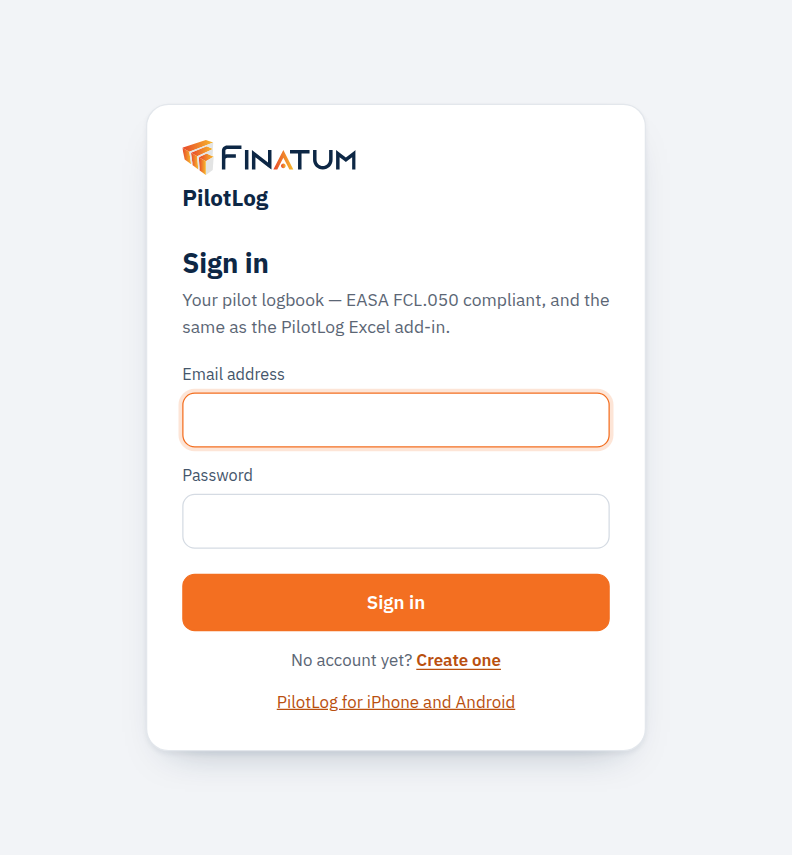
Open finatum.de/pilotlog and sign in with your email address and password.
If you don't have an account yet, choose Create one and enter your name, email address and a password of at least 12 characters.
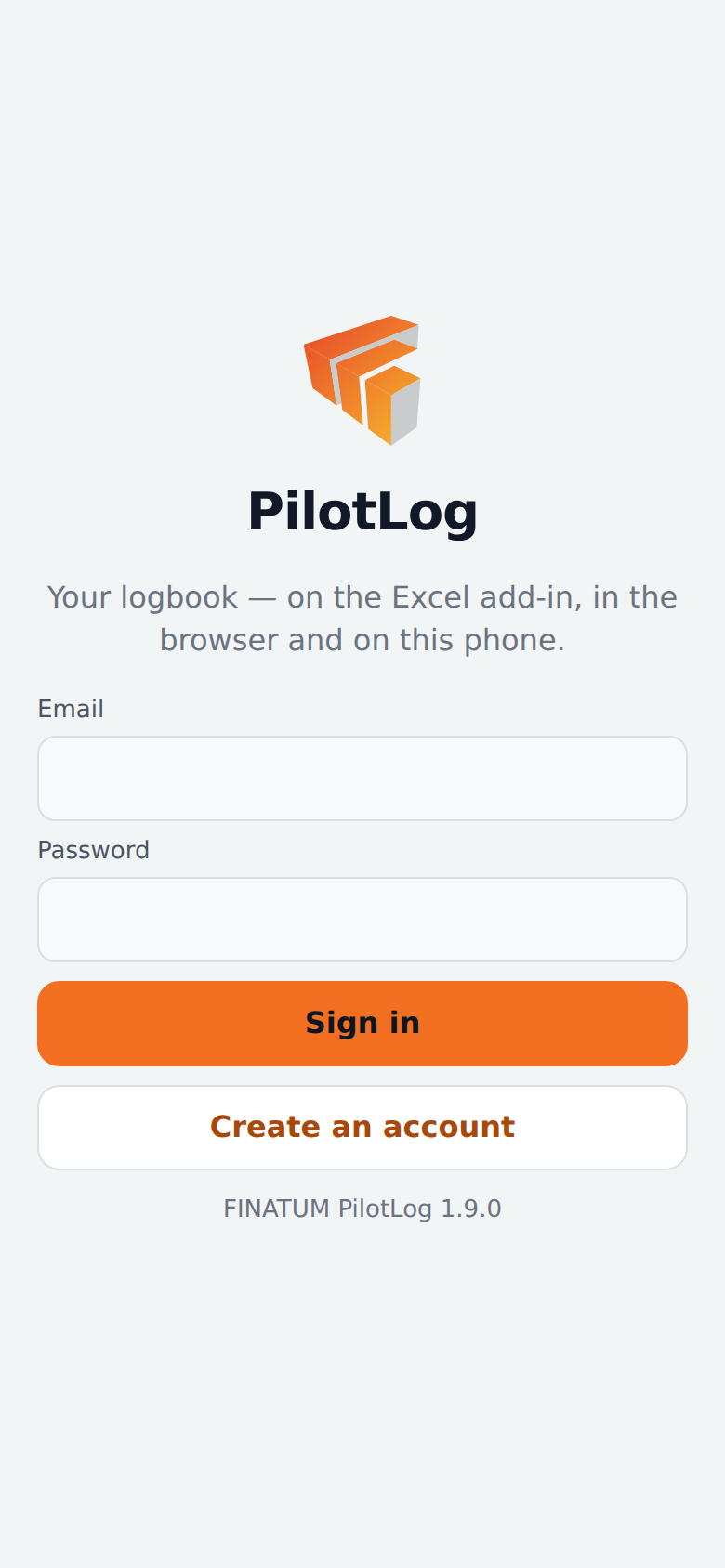
Sign in, or create your account.
The screen
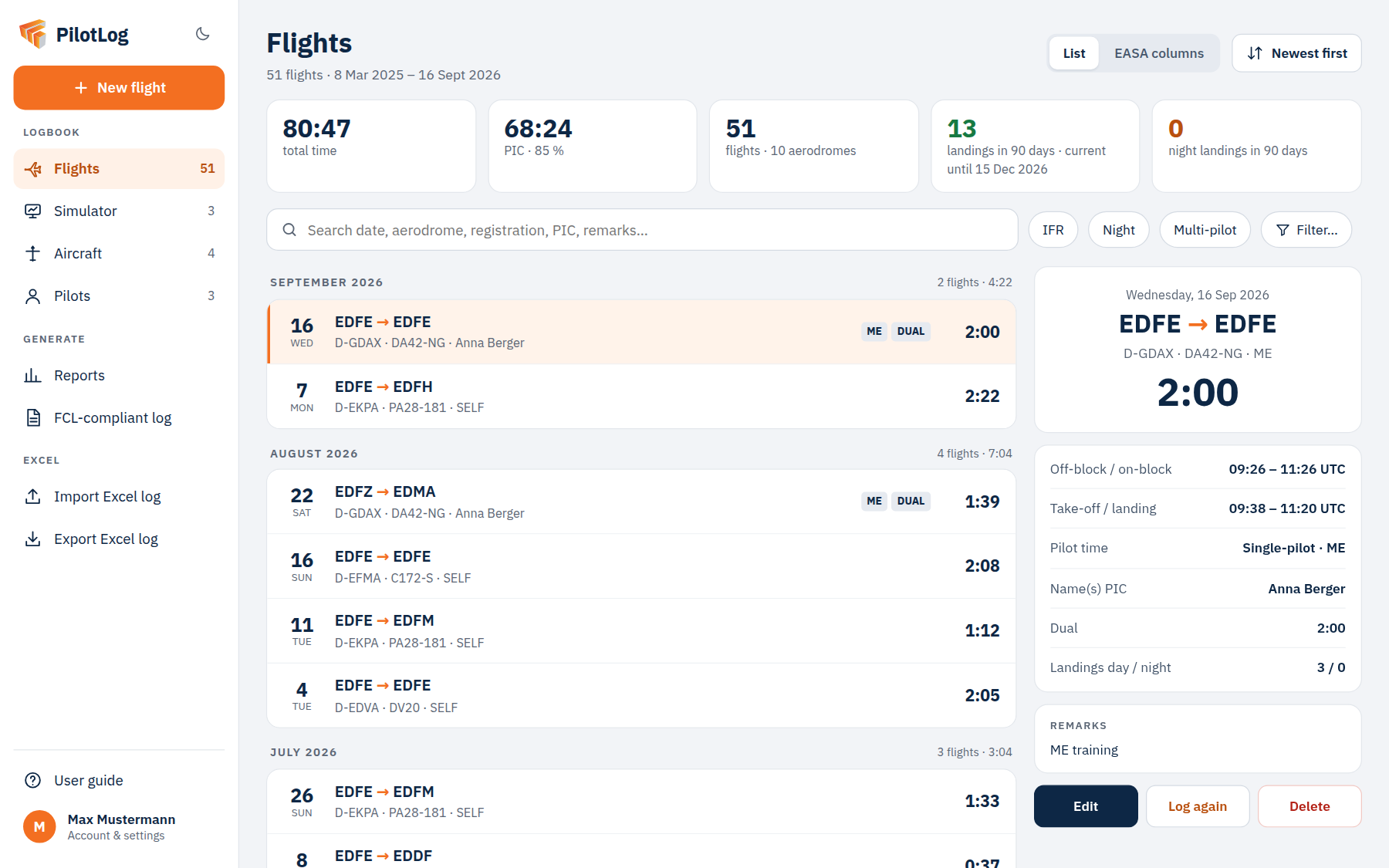
PILOTLOG in the browser looks and works like PILOTLOG on your phone, laid out for a larger screen: the navigation on the left, the open part of your logbook in the middle, and the selected entry on the right.
Flights: totals and recency at the top, the flights by month, and the selected flight with Edit, Log again and Delete.
In the navigation
What it does
New flight
The orange button adds an entry to the part you are in — a flight, a simulator session, an aircraft or a pilot (3–6).
Logbook: Flights · Simulator · Aircraft · Pilots
The four parts of the logbook, each with the number of entries.
Generate: Reports · FCL-compliant log
Statistics and charts as PDF or Excel; the printable EASA log (10, 11).
Version
The version of PILOTLOG is shown at the top of the navigation, next to Logbook (e.g. v1.10.0); the Excel add-in has the same version.
Import and export: Import paper logbook · Import Excel log · Export Excel log
Bring in a paper logbook with Claude's help (2); load an existing logbook from an Excel file; save your whole logbook as an Excel file (2, 12).
User guide · your name
Opens this guide · opens Logbook & account with your password, settings, totals and help (12). The moon/sun icon next to the logo switches between light and dark.
Tiles at the top — total time, PIC time, the number of flights and aerodromes, and your landings and night landings in the last 90 days, green when you are current (FCL.060).
The list — flights and simulator sessions are grouped by month, with the number and time of each month. Badges show ME, IFR, night (N), multi-pilot (MP), dual, instructor (FI) and attachments (⎘).
Selecting — click an entry to see it on the right; ↑↓ move the selection, Enter or a double-click opens it for editing. Long logbooks show 150 entries at a time; Show more loads the next ones.
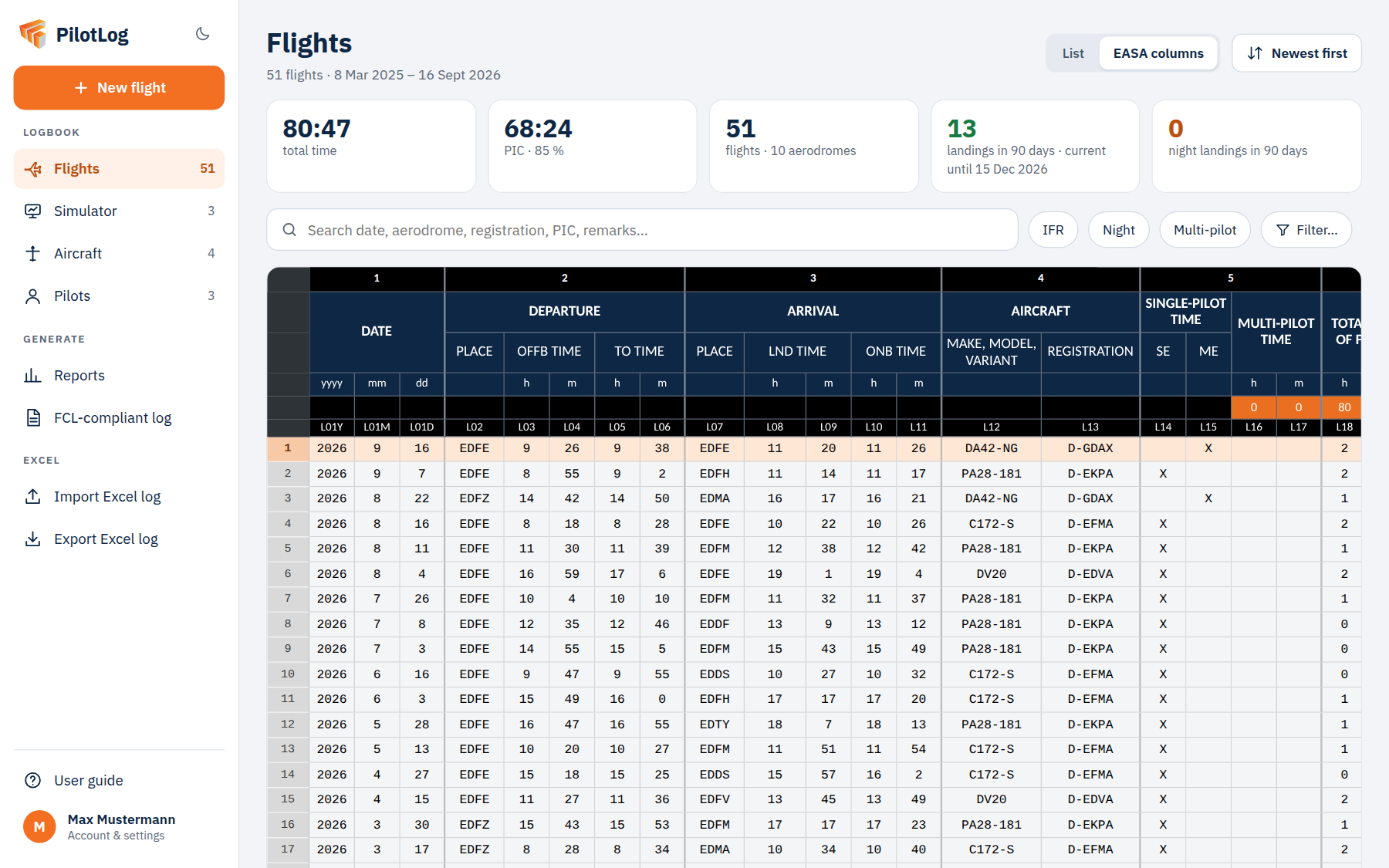
List or EASA columns — the switch at the top right shows the same entries as the columns of the EASA paper logbook, with the orange totals line, as in the Excel add-in. PILOTLOG remembers your choice.
The EASA columns view: the layout of the paper logbook and of the Excel add-in.
Bringing your existing logbook
If you already keep your PILOTLOG logbook in an Excel file, you don't have to type anything again.
Click Import Excel log in the navigation and choose the file — or drop the file onto the box on the Logbook & account page.
PILOTLOG reads the four sheets and shows how many flights, simulator sessions, aircraft, pilots and images it found, next to what is in your logbook now.
Choose Add to my logbook to add only what is not there yet, or Replace my logbook to start over with the content of the file, and click Import.
Entries that are already there or incomplete are skipped and listed at the end. Images and signatures attached to entries are imported with them.
Important — the file must have the PILOTLOG format. An Excel file can only be imported if it has the structure of a PILOTLOG logbook:
the sheets FLIGHTLOG, SIMLOG, AIRCRAFT and PILOTS with their column layout and column codes (L01 …). Other Excel logbooks cannot be read.
The surest way to get the right format: first export your (still empty) logbook with Export Excel log, copy your entries into this file, and import it.
From a paper logbook
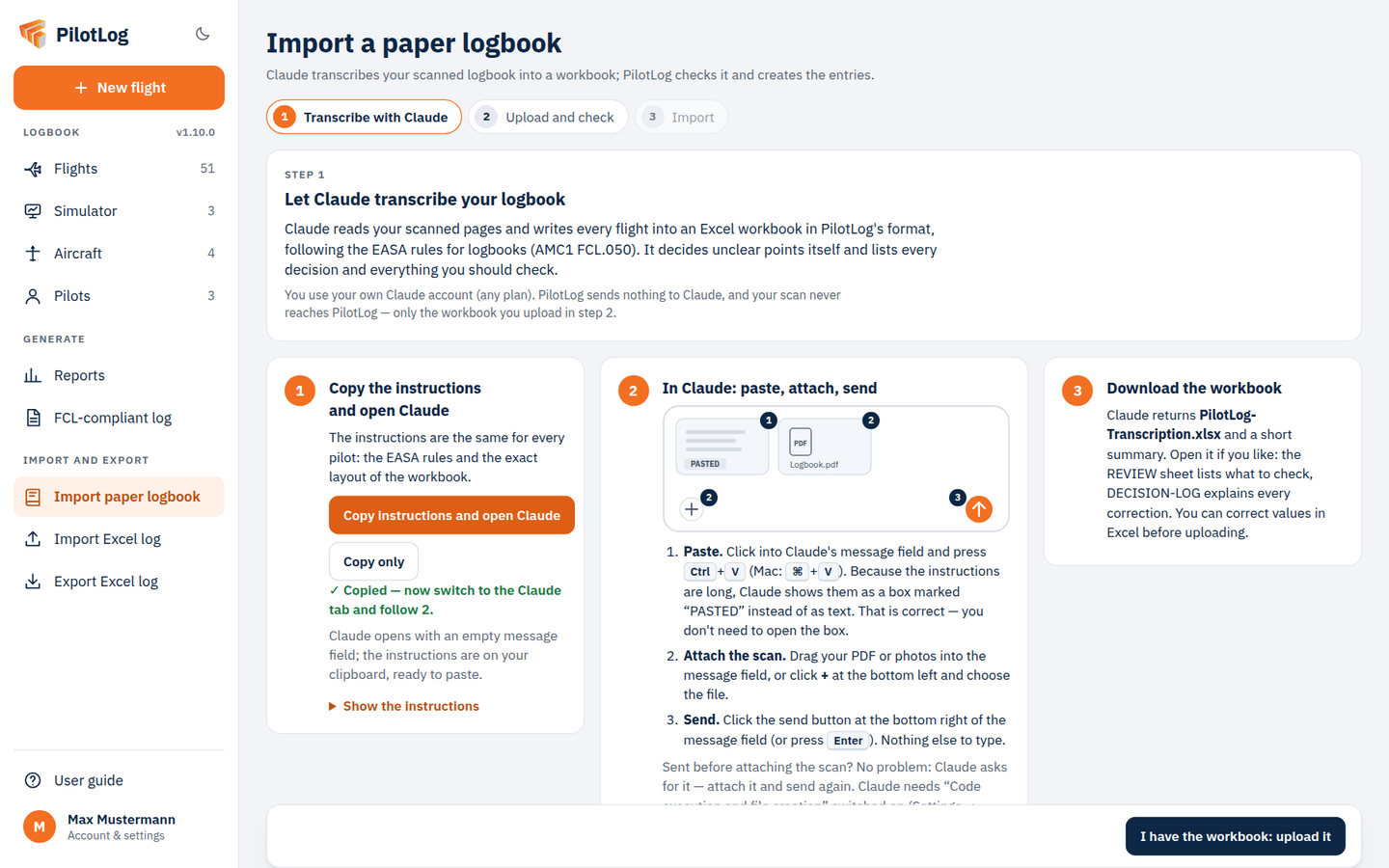
Years of flights in a paper logbook don't have to be typed. Claude, the AI assistant by Anthropic, reads your scanned pages and writes them into a workbook in PILOTLOG's format; PILOTLOG checks the workbook and creates the entries. Click Import paper logbook in the navigation.
Transcribe with Claude. Click Copy instructions and open Claude. Claude opens in a new tab with an empty message field; the instructions are on your clipboard. In Claude:
paste them into the message field (Ctrl+V, on a Mac ⌘V) — because they are long, Claude shows them as a box marked “PASTED” instead of as text, which is correct;
attach your scanned logbook (a PDF or photos of the pages) by dragging it into the message field or with + at the bottom left; and
send with the send button at the bottom right (or Enter). Claude returns PilotLog-Transcription.xlsx and a short summary. If you send before attaching the scan, Claude asks for it.
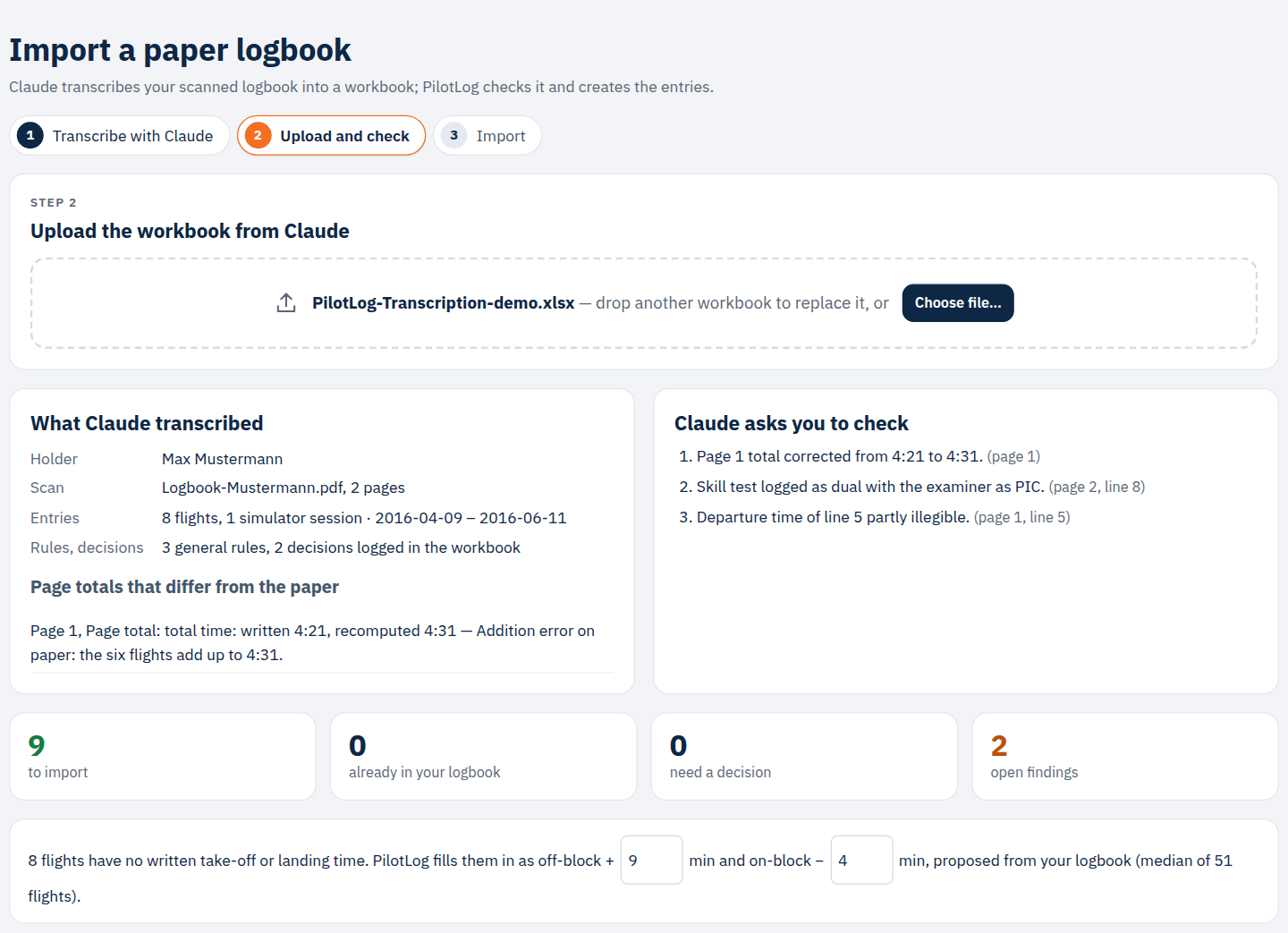
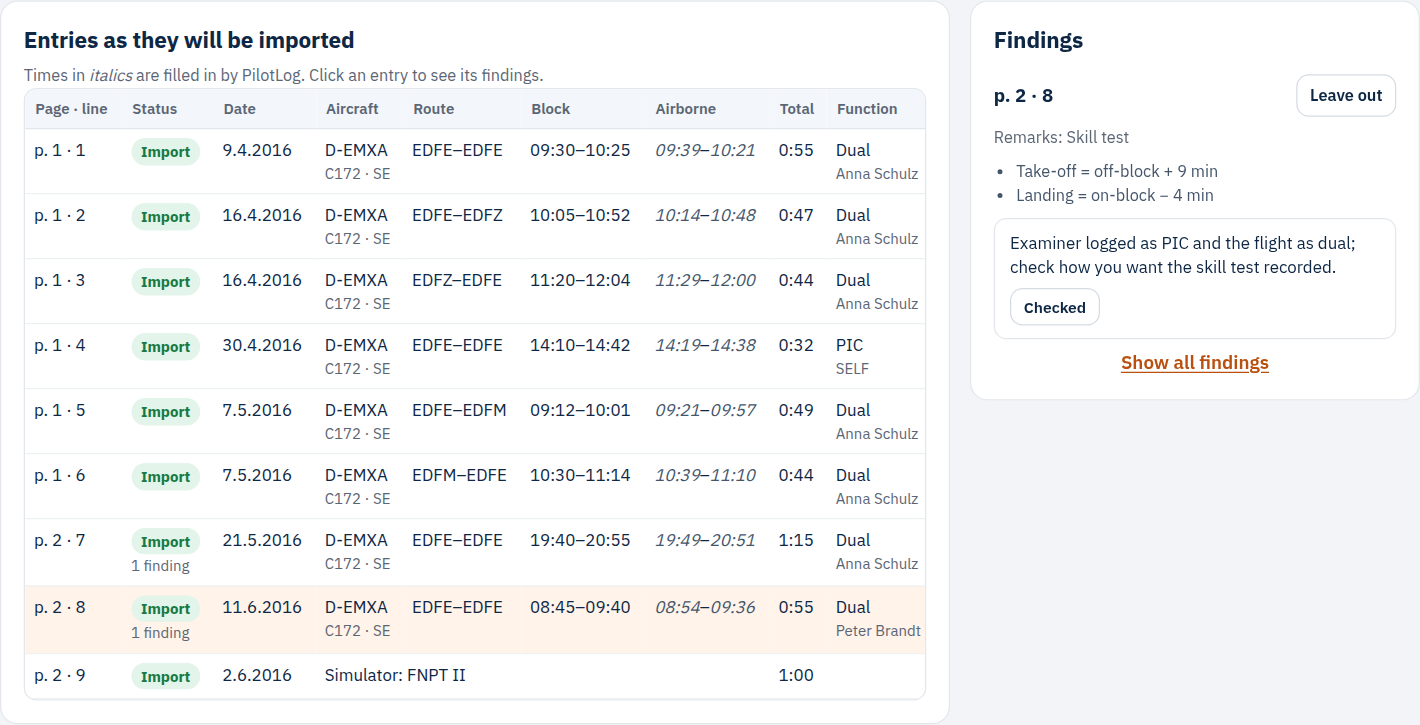
Upload and check. Back in PILOTLOG, click I have the workbook: upload it and drop the workbook onto the box. PILOTLOG shows what Claude transcribed, page totals that differ from the paper and what Claude asks you to check; below, every entry as it will be imported, and the findings.
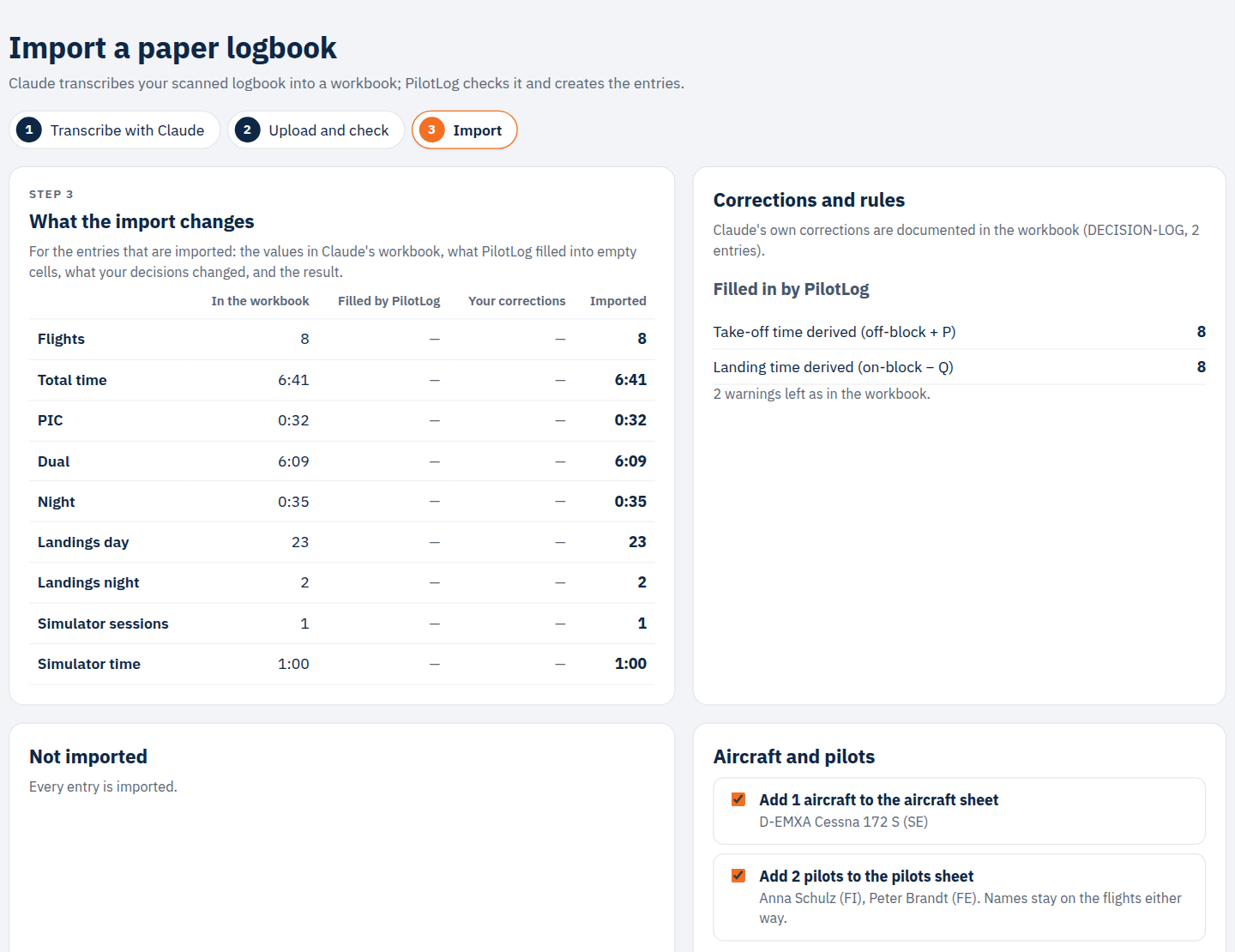
Import.See what the import changes sums up the result; Import adds the flights and simulator sessions and — if you leave the boxes ticked — the new aircraft and pilots.
Step 1: copy the instructions, open Claude, attach the scan.Step 2: what Claude transcribed and what it asks you to check.
The instructions are the same for every pilot. They contain the EASA rules for logbooks (AMC1 FCL.050) and the exact layout of the workbook, so you attach nothing but the scan and choose nothing. Claude decides unclear points itself — an overwritten digit, an arithmetic error in a page total — and documents every decision in the workbook. Show the instructions displays them; you can also download them as a text file.
The workbook has one sheet each for flights, simulator sessions, aircraft and pilots, and four sheets that document the transcription: PAGE-TOTALS (the totals written on paper against the recomputed ones), MAPPING-RULES (the general rules applied), DECISION-LOG (every correction, row by row) and REVIEW (what you should check). You can open it in Excel and correct values before uploading. Keep it with your paper logbook.
Every entry as it will be imported; on the right, the findings of the selected entry.
Findings. PILOTLOG checks every entry as it does when you log a flight: the total time against off-block and on-block, the function times against the total, the night time recalculated from the aerodromes, unknown aerodromes, and entries that are already in your logbook — these are skipped. Entries Claude marked as uncertain appear as findings too. Click an entry to see its findings, and choose a fix or Checked — for one entry, or with the button next to All for every finding of that kind. Leave out excludes an entry.
Times in italics are filled in by PILOTLOG: where the paper has no take-off and landing times, take-off = off-block + P and landing = on-block − Q, with P and Q proposed from your own flights. You can change them above the list.
Step 3: the effect on your totals, and the aircraft and pilots that will be added.
What the import changes lists, for every total, the value in the workbook, what PILOTLOG filled in, what your decisions changed and the result — plus the entries that are not imported and the aircraft and pilots that will be added.
Your own Claude account. You need a Claude account (claude.ai, any plan) with “Code execution and file creation” switched on (Settings → Capabilities; on by default for most accounts). PILOTLOG sends nothing to Claude, and your scan never reaches PILOTLOG — only the workbook you upload.
A PDF of up to 100 pages is read with its images. For a long logbook, send about 25 pages per chat and upload each workbook in turn: entries already imported are recognised and skipped. Unfinished checks are kept in your browser, so you can continue later.
3Aircraft
Add all aircraft you own, rent or charter once. When you log a flight, PILOTLOG then fills in make, model and class, offers the aircraft as one-click buttons and knows whether IFR time is possible.
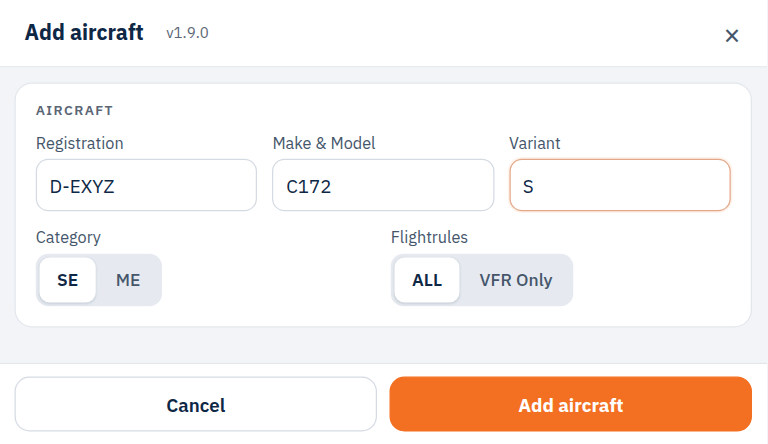
Choose Aircraft in the navigation and click New aircraft.
Enter the Registration (e.g. D-EFMA), Make & Model (e.g. C172) and, if you like, the Variant (e.g. S).
Choose the Category — SE single-engine or ME multi-engine — and the Flightrules — ALL or VFR Only.
Click Add aircraft.
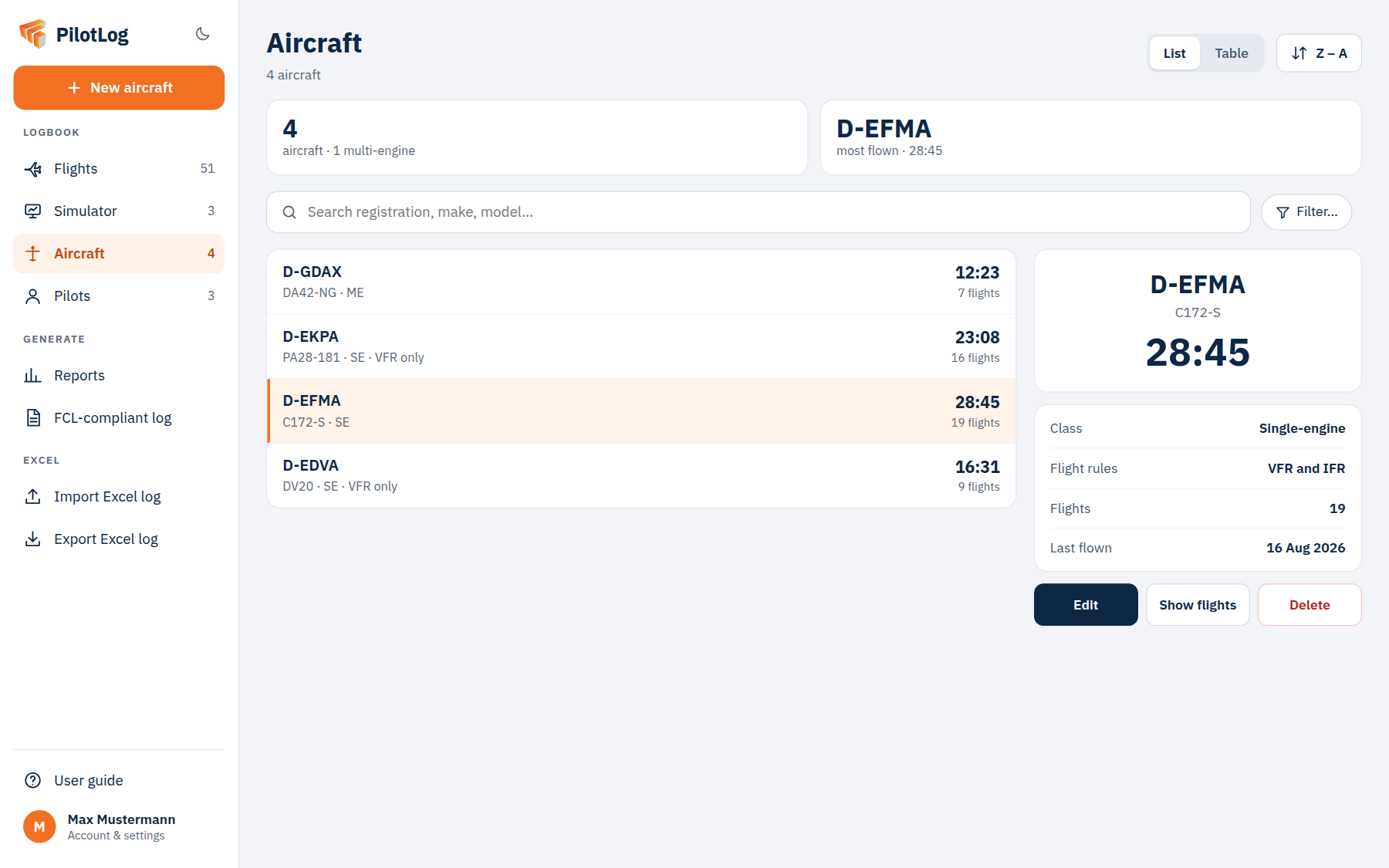
Add aircraft.Aircraft, with the time and number of flights of each. Show flights lists the flights of the selected aircraft.
A registration can exist only once. For a VFR Only aircraft the IFR time of a flight stays empty.
4Pilots
Add yourself and the pilots you regularly fly with — instructors, examiners, captains. They are then suggested as the pilot in command of a flight.
Choose Pilots in the navigation and click New pilot.
Enter first and last name. PILOTLOG suggests an Alias (e.g. LAU.SC); you can change it.
Enter the licence Number and Country — both or neither — and choose the licence Type.
Select the Ratings (Night, IFR, ME) and click Add pilot.
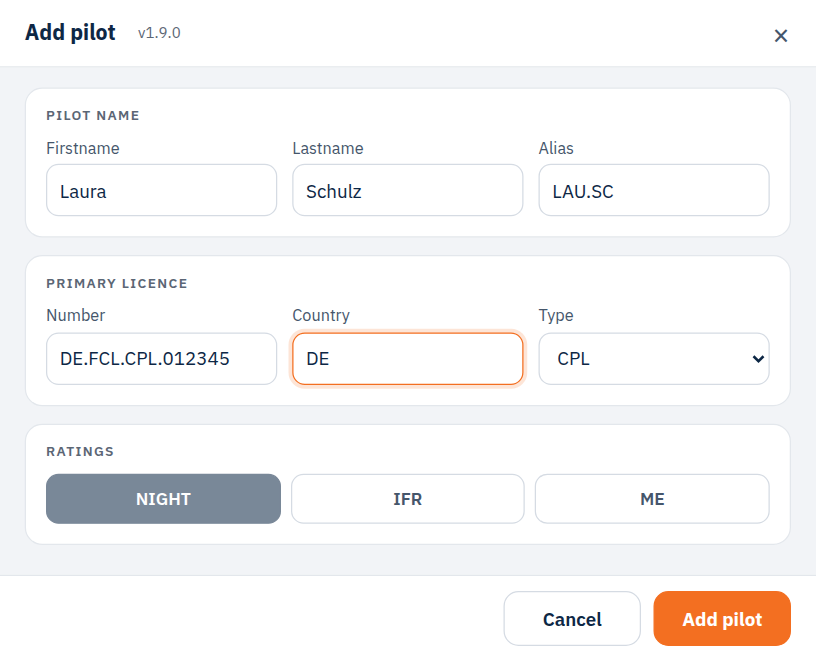
Add pilot. With CPL the night rating is set automatically, with ATPL all three.
Enter yourself with the alias SELF. SELF is the default pilot in command of new flights, and your name and licence from this entry appear on the FCL-compliant log.
Ratings are predetermined by the licence type: a CPL includes the night rating, an ATPL night, IFR and multi-engine. PILOTLOG uses the ratings to warn you when, for example, night time is logged for a pilot without a night rating.
5Flights
Click New flight. The flight form slides in from the right, with today's date and SELF as pilot in command. It is the same form as in the Excel add-in.
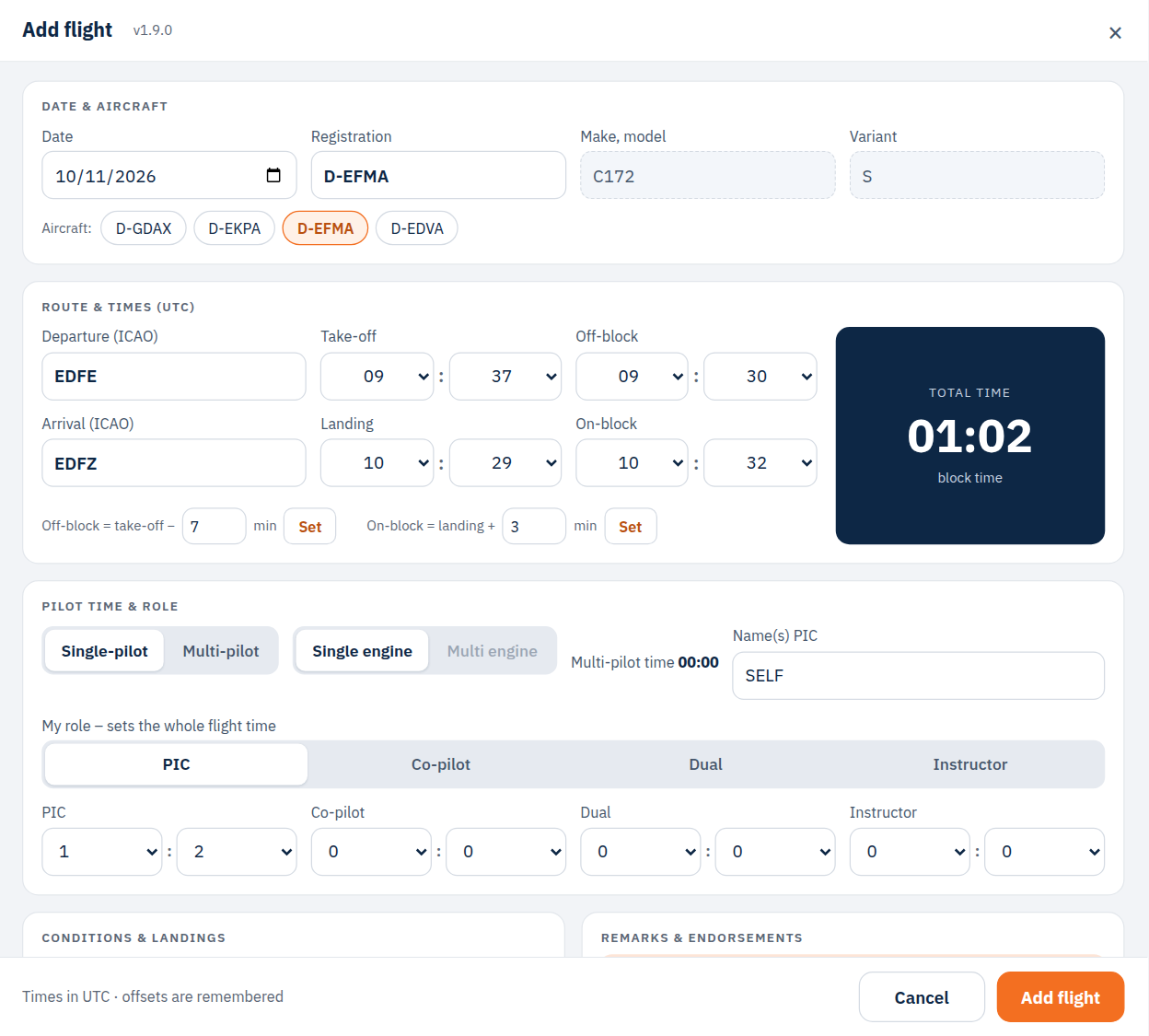
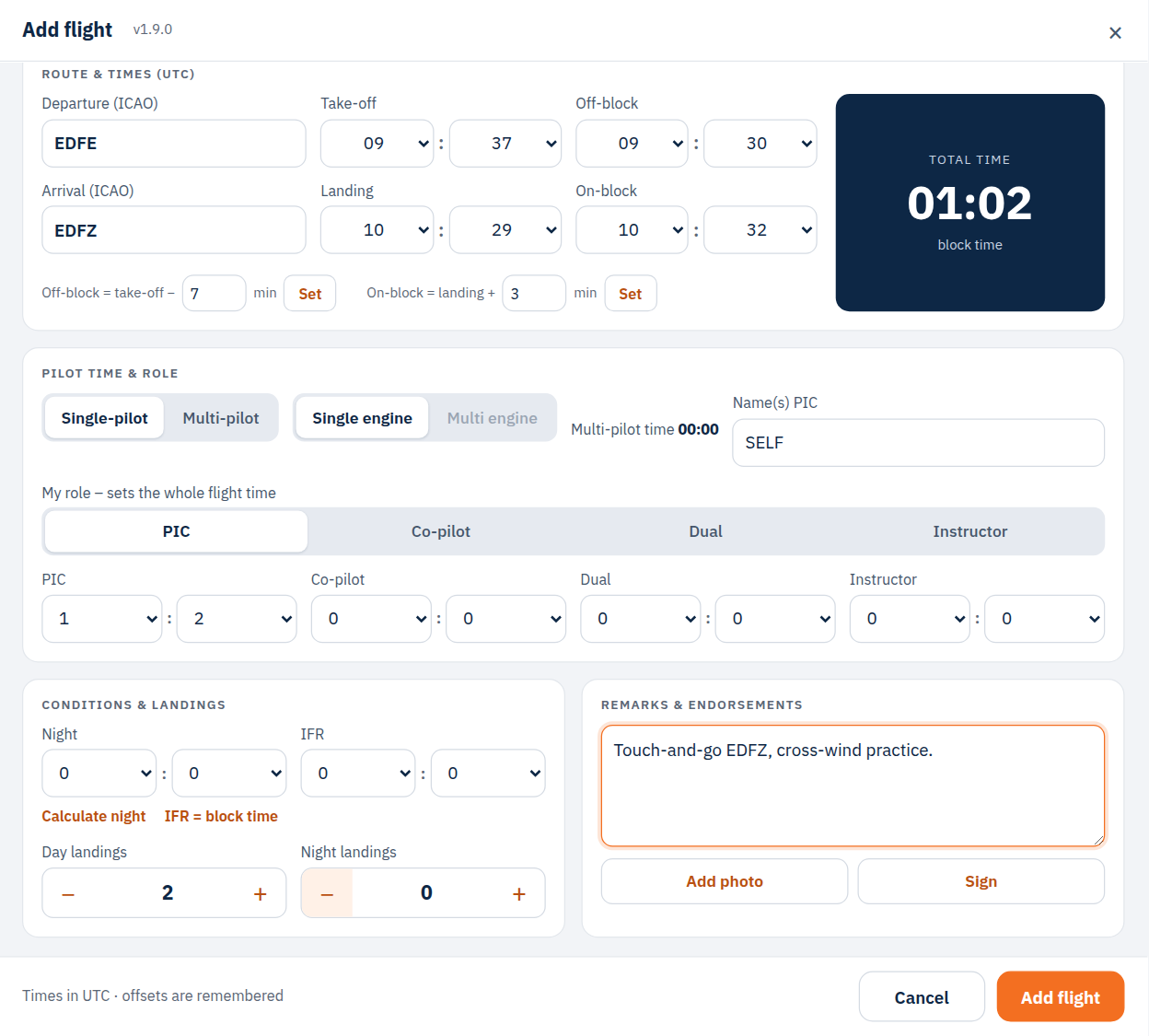
Aircraft as buttons, route and times; the total time is calculated as you enter the times.Your role, night and IFR time, landings and remarks.
Work with the keyboard:Tab moves from field to field. In fields with suggestions — registration, aerodromes, pilot — Tab also takes the suggestion when your letters match only one entry (“d-ef” → D-EFMA). Choosing a value in a dropdown with the mouse moves on to the next field automatically.
The flight form, field by field
Section
How it works
Date & aircraft
Today is preselected. Click one of your aircraft in the row of buttons, or type the Registration: make, model, variant and SE/ME are filled in. An aircraft that is not in your list can simply be typed in, with make and model.
Route & times (UTC)
Start typing the ICAO code of Departure and Arrival; matching aerodromes are suggested (“EDF” → EDFE, EDFH, EDFM …). Enter Take-off, Landing, Off-block and On-block as hours and minutes. With Set PILOTLOG derives the block times: off-block = take-off minus your minutes, on-block = landing plus your minutes. The minutes are remembered (default 7 and 3) and can also be set on the account page.
Total time
The dark tile shows the block time from off-block to on-block, also across midnight.
Pilot time & role
Single-pilot or Multi-pilot; single-pilot time is booked as single or multi engine according to the aircraft, multi-pilot time equals the total time. Name(s) PIC: SELF, a pilot from your list, or any other name.
My role — PIC, Co-pilot, Dual or Instructor — puts the whole flight time into that function and clears the others; Instructor sets PIC time as well. The four times below can also be set by hand.
Conditions & landings
Night and IFR time. Calculate night works out the night time from the civil twilight at both aerodromes and along the route; IFR = block time sets the whole flight as IFR (not possible for VFR-only aircraft). Day and night landings with − and +.
Remarks & endorsements
Free text. With Add photo or Sign you attach an image or a signature (see below).
Click Add flight. The flight appears in the list and is selected; totals and recency are updated at once.
Checks and warnings
Before saving, PILOTLOG checks the entry:
Required: date, registration and off-block time. A flight with the same date, registration and off-block time cannot be entered twice.
Warnings point out entries that are unusual but may be correct — you can save anyway: departure or arrival missing, no landings,
PIC + Co-pilot + Dual not equal to the total time, instructor time above PIC time, or a pilot without the night, IFR or ME rating the flight needs.
Times that are zero are left empty, as in a paper logbook — the log shows only what was actually flown.
Signatures and images
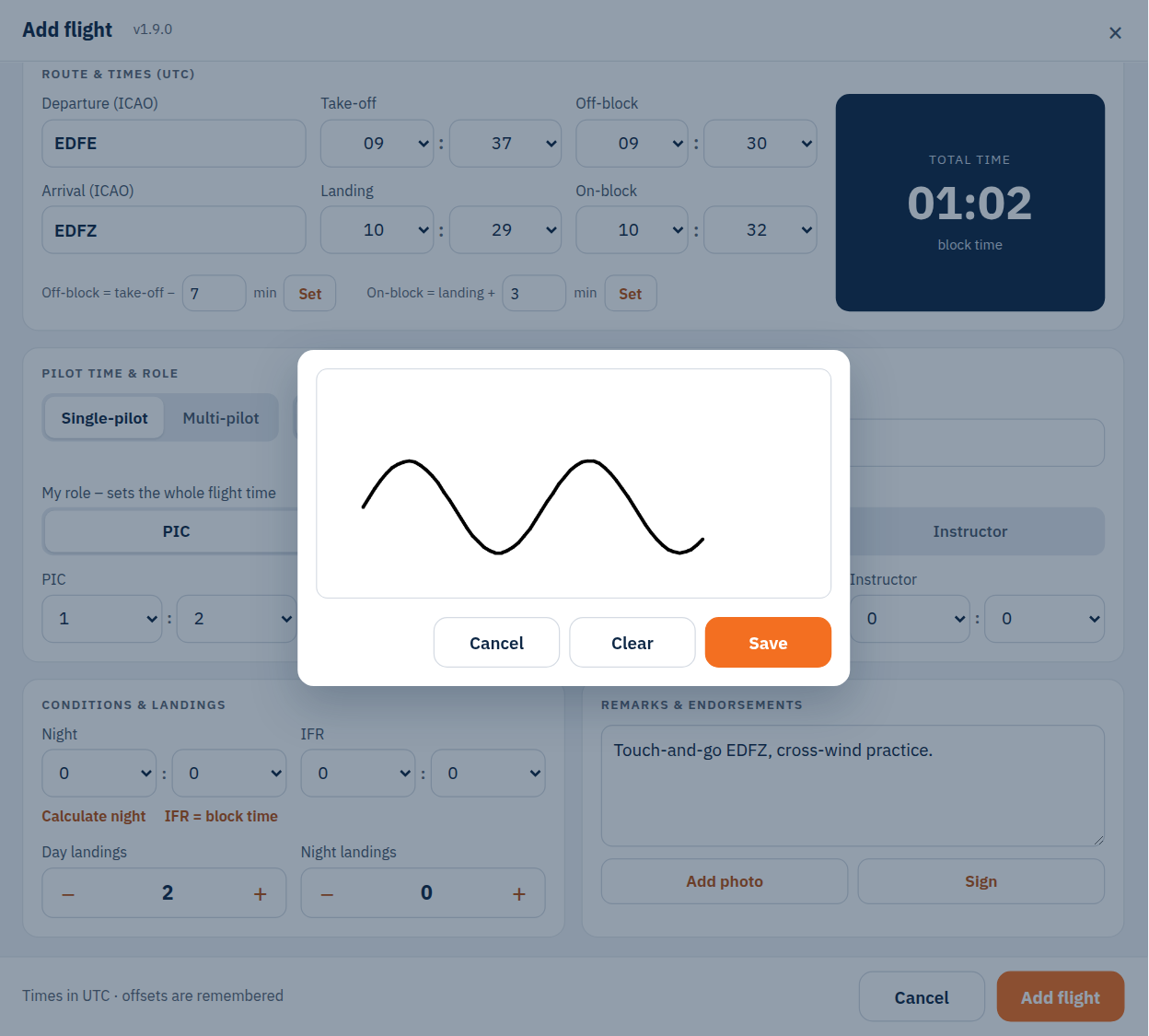
An instructor or examiner can sign directly in PILOTLOG: click Sign, sign with the mouse, a pen or a finger, and click Save.
Alternatively attach a photo or scan with Add photo. The remark gets the tag [IMAGE], the image is shown with the flight, and the signature is printed on the FCL-compliant log.
Signing a flight.
6Simulator sessions
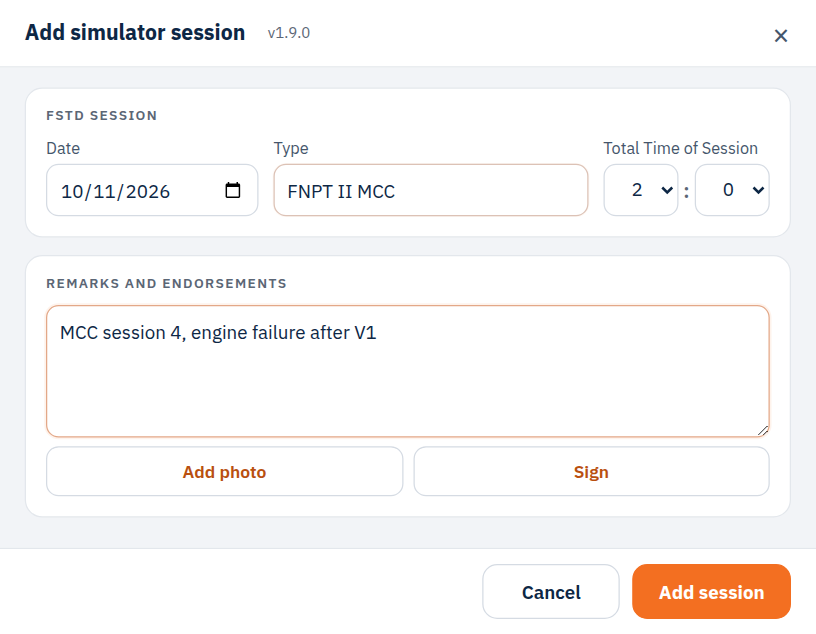
Choose Simulator in the navigation and click New session. Enter the date, the type of FSTD (e.g. FNPT II MCC), the total time of the session and remarks; a signature or image can be attached as for flights.
Sessions on the same day are numbered automatically.
Adding a simulator session.
7Edit, log again, delete
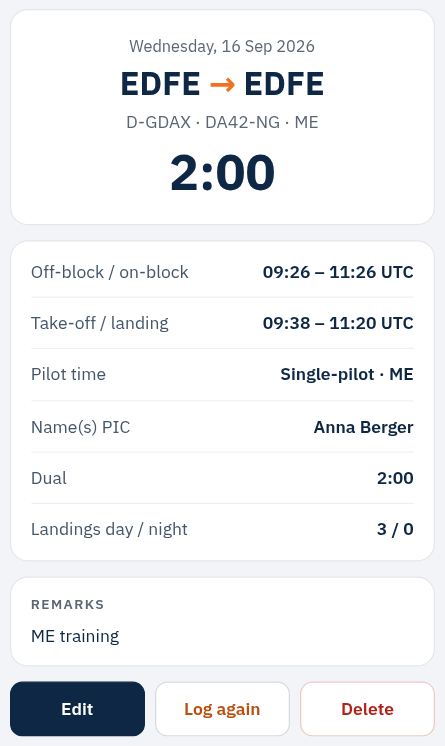
Select an entry in the list. On the right you see all its details, a signature or image, and the buttons:
Edit opens the entry in the same form as when adding it. Shortcut: double-click the entry, or press Enter.
Log again (flights) starts a new flight with the same aircraft and pilot in command, departing where the selected flight arrived — handy for the next leg.
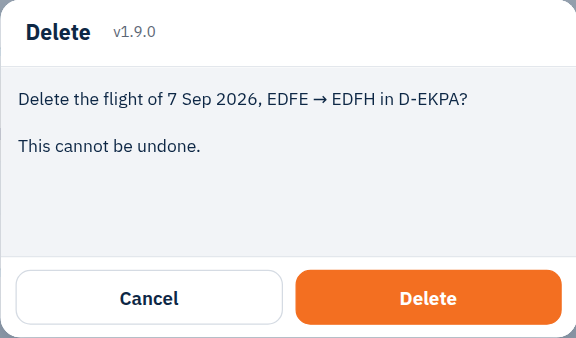
Delete removes the entry after you confirm; the Delete key does the same.
Show flights (aircraft) lists all flights of the selected aircraft.
The same works in the EASA columns view: click a row to select it, double-click to edit.
The selected flight.
Deleting asks for confirmation.
8Search and filter
Three ways help you find entries; they work together, in the list and in the EASA columns view:
Search — type into the search box above the list: a date (2026-08 or 16.8.2026), an aerodrome, a registration, a type, a pilot or a word from the remarks. Several words must all match.
Quick filters (flights) — IFR, Night and Multi-pilot show only the flights with that time.
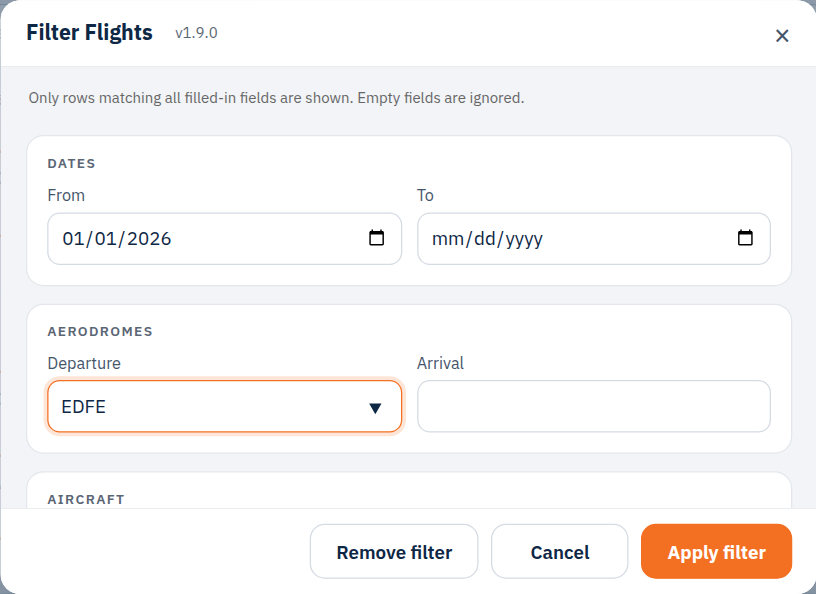
Filter… — the detailed filter for the part you are in:
Filter Flights.
Part
Filter by
Flights
Dates from / to · Aerodromes departure, arrival · Aircraft type, registration
Simulator
Dates from / to · type of FSTD
Aircraft
Make & model · category · registration
Pilots
Name or alias · licence type
All fields you fill in apply together; empty fields are ignored. The lists only offer what occurs in your logbook within the chosen dates; choosing a registration fills in its type.
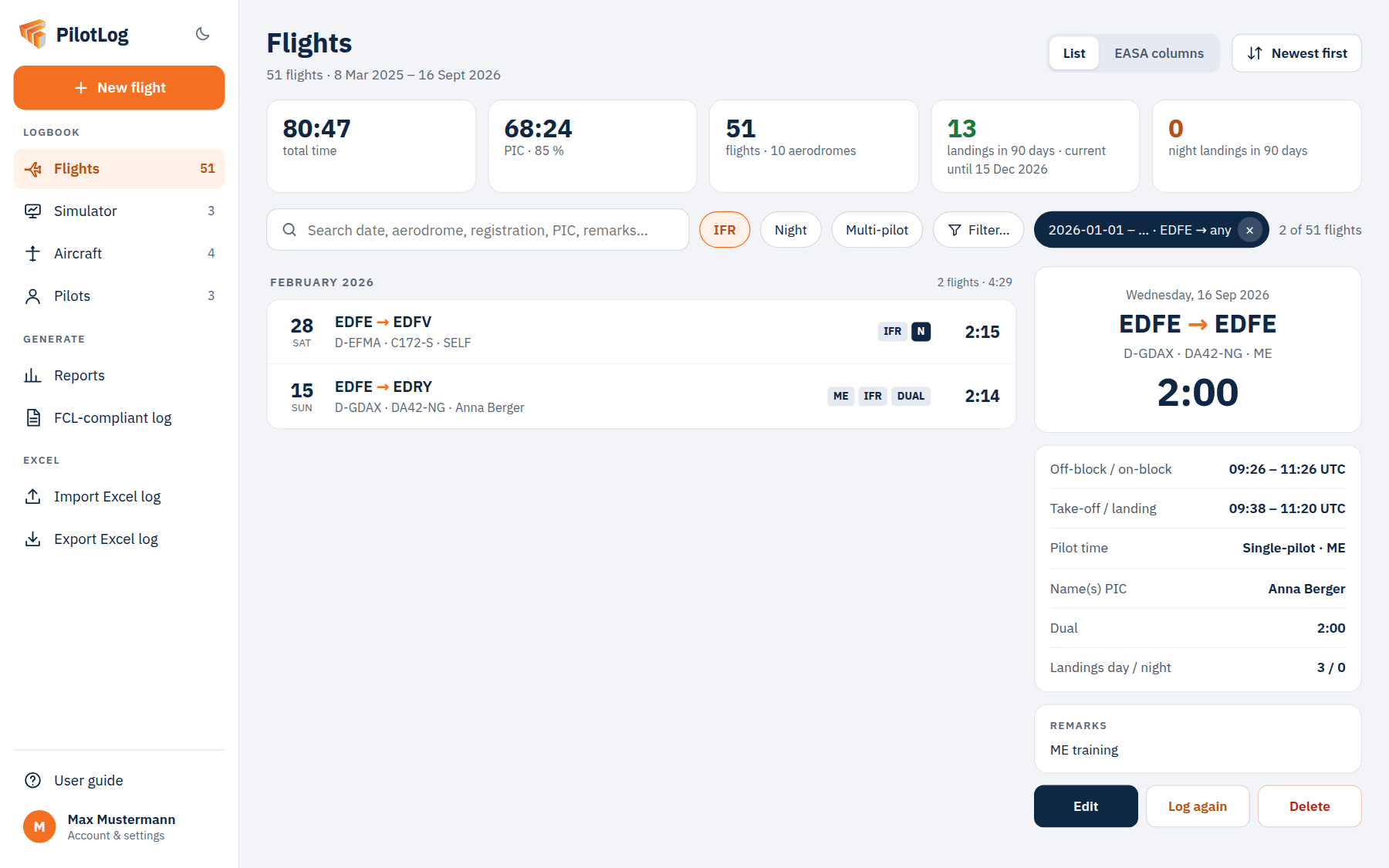
An active filter is shown as a dark chip next to the search box, with the number of matching entries (e.g. “14 of 51 flights”). The × on the chip removes it; if nothing matches, Show all clears search, quick filters and filter at once.
A filter (from 1 Jan 2026, departure EDFE) combined with the IFR quick filter.
9Sort order
The button next to the List / EASA columns switch toggles between Newest first and Oldest first (for aircraft and pilots: Z – A and A – Z). The order is remembered for your next visit and is the same as in the Excel add-in.
Flights are sorted by date, off-block time and registration; simulator sessions by date and session; aircraft by registration and pilots by alias.
10Reports
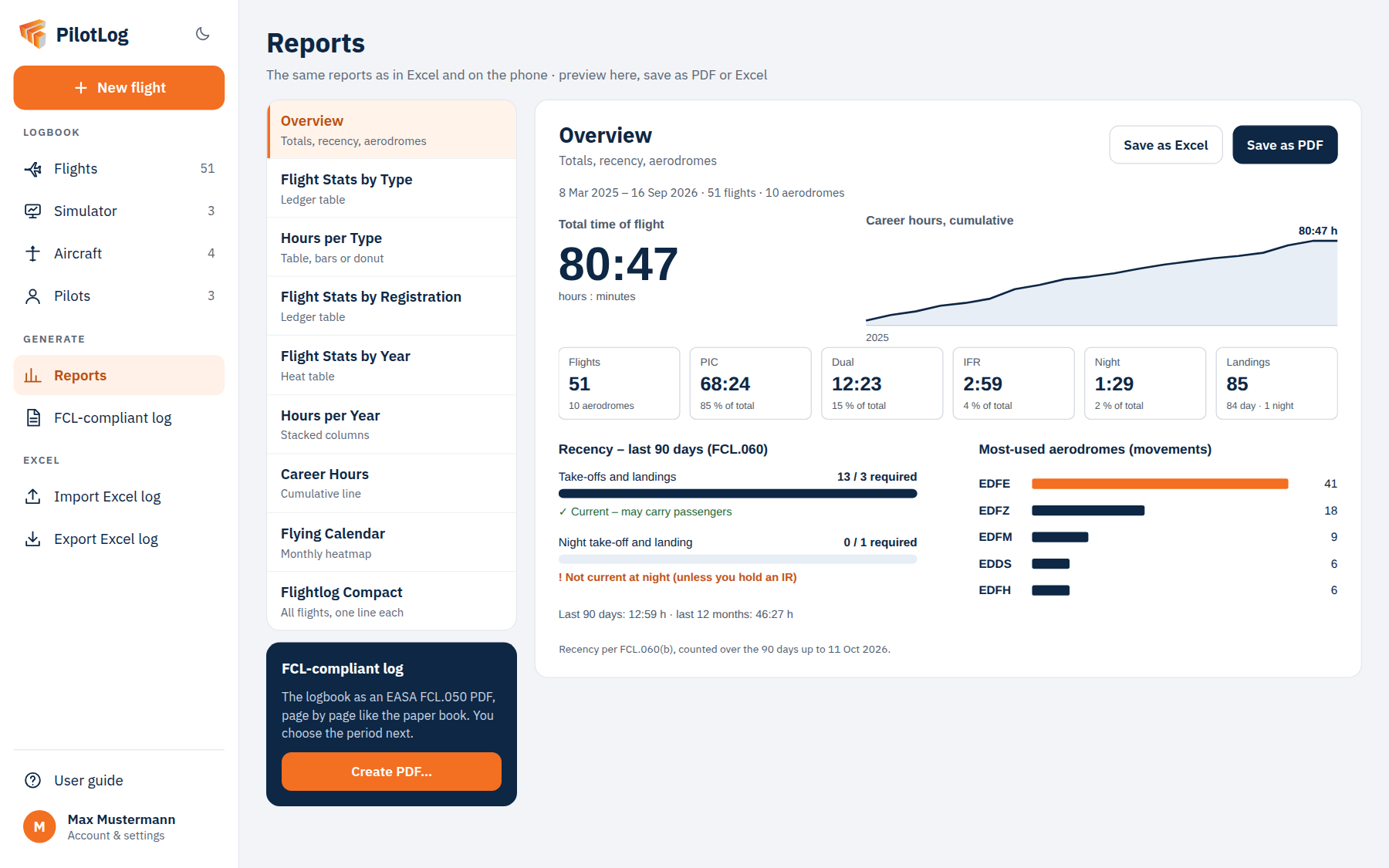
Choose Reports in the navigation. The reports are listed on the left; the selected one is shown on the right, calculated from all your flights. Save as PDF and Save as Excel save it — the Excel file has real times (h:mm) you can add up.
The Reports page, here with the Overview.
Report
What it shows
Overview
Total time, a line of your cumulative hours, flights, PIC, dual, IFR, night and landings, your recency for the last 90 days (FCL.060) and your most-used aerodromes.
Flight Stats by Type
Flights, day and night landings, total, PIC, dual, IFR and instructor time per aircraft type, as a table.
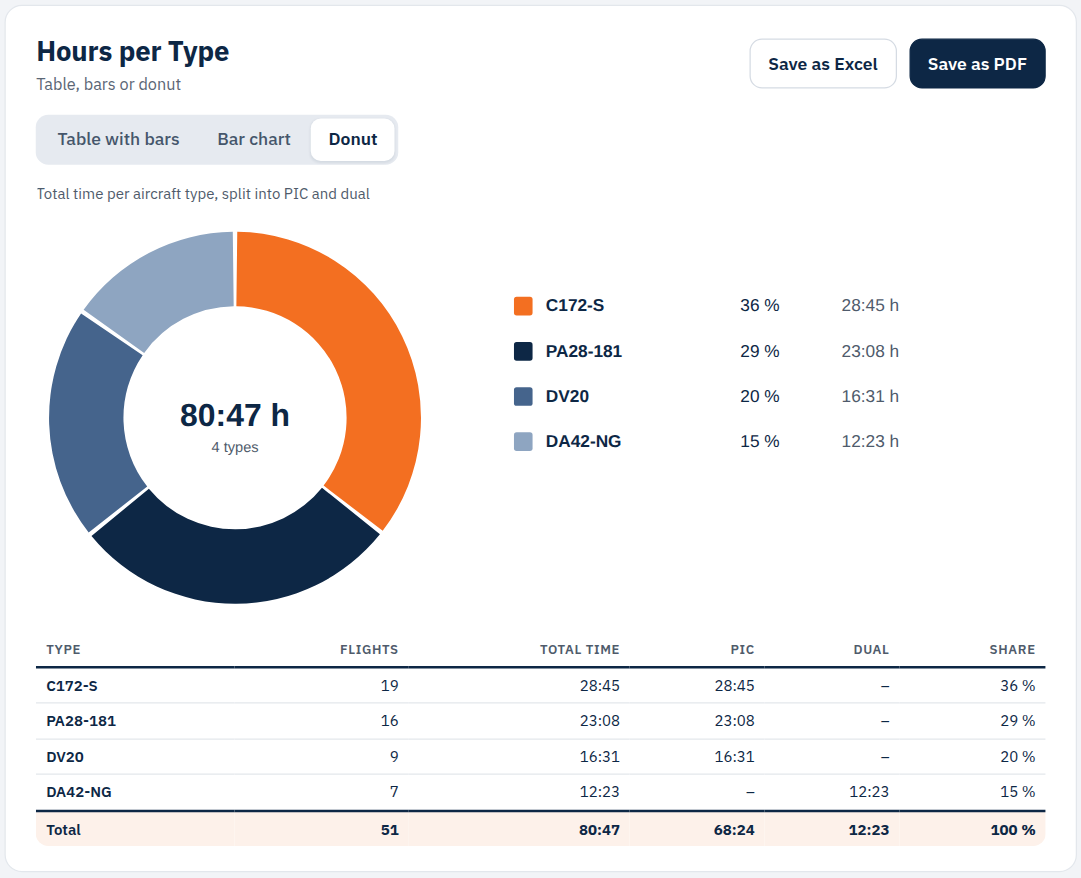
Hours per Type
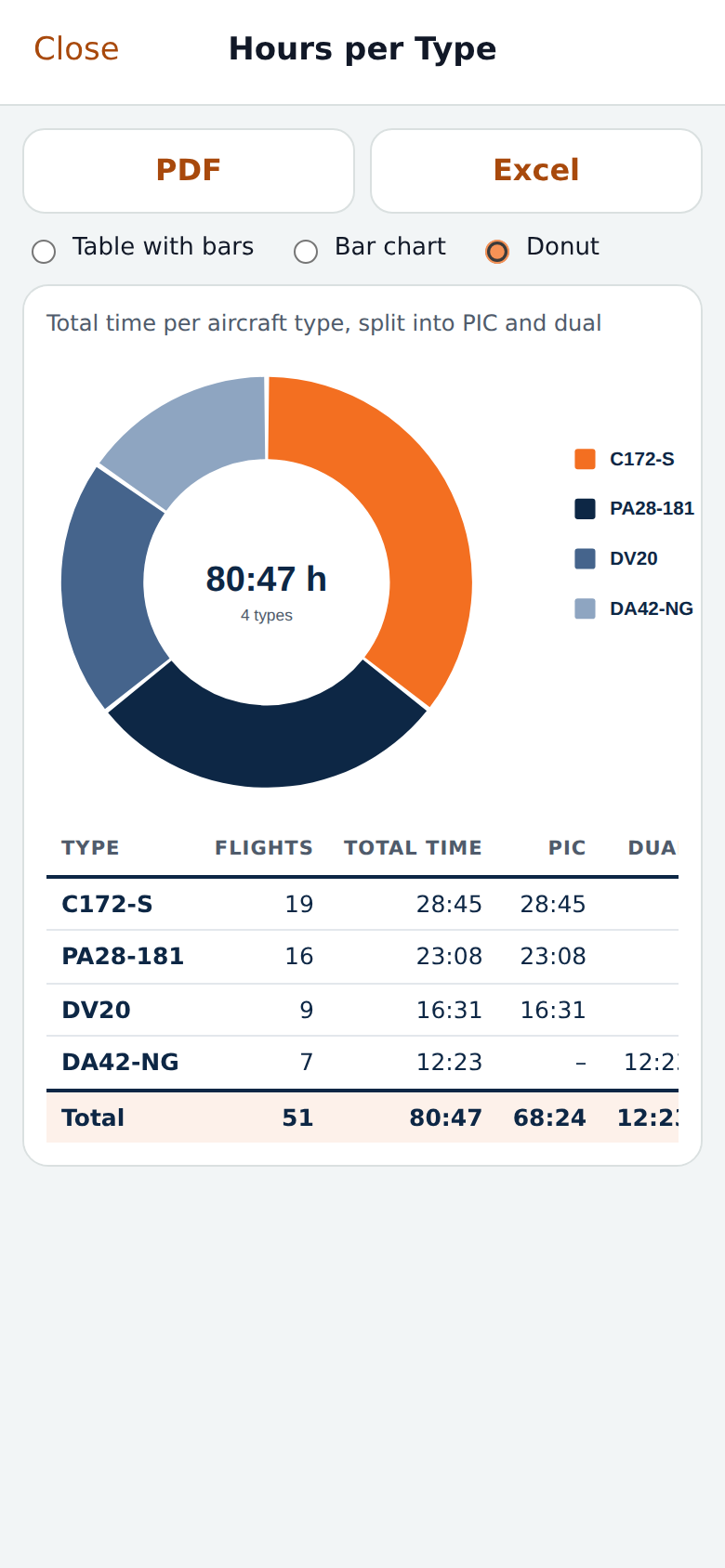
The time per type split into PIC and dual. Choose how it is shown: Table with bars, Bar chart or Donut.
Flight Stats by Registration
The same figures per aircraft.
Flight Stats by Year
The same figures per year, the cells shaded by value.
Hours per Year
A column per year, split into PIC and dual.
Career Hours
Your total time over the years as a line, with milestones (100 h, 250 h, 500 h …).
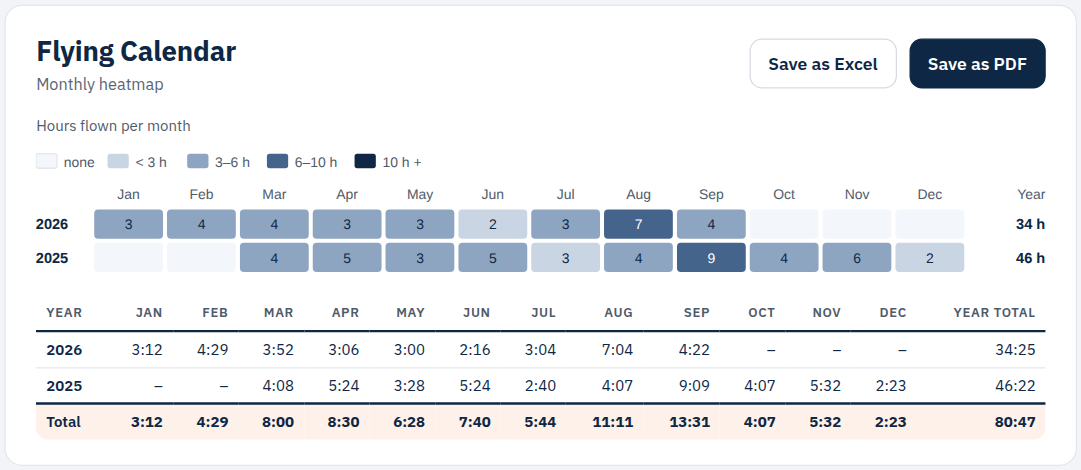
Flying Calendar
Hours per month and year as a heatmap — when you fly most.
Flightlog Compact
All flights, one line each.
Hours per Type, shown as a donut.The Flying Calendar.
A flight without an aircraft type is counted under the type most often logged for the same registration; the report says so in a note.
11FCL-compliant log
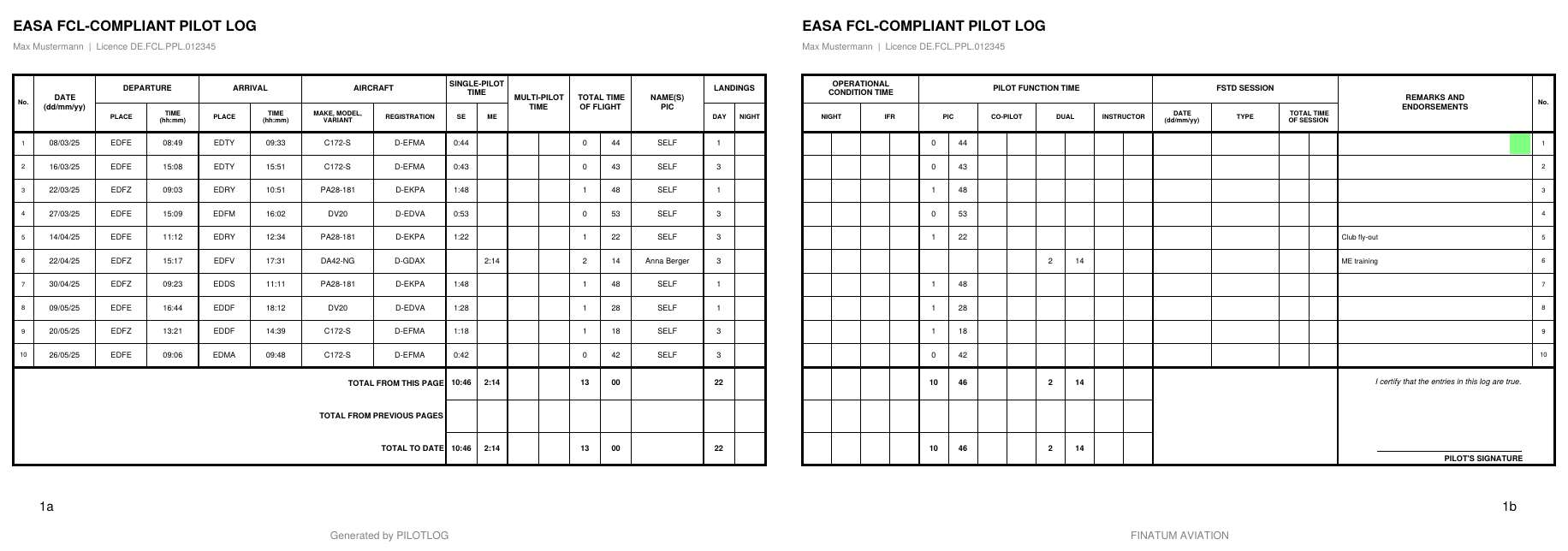
FCL-compliant log in the navigation (or Create PDF… on the Reports page) creates a printable PDF of your logbook in the familiar EASA Part-FCL layout (FCL.050), laid out like a printed pilot log on A5 landscape pages: a cover, the pilot information from your SELF entry,
a notes page, and then for every ten entries a left page (date, departure and arrival, aircraft, single- and multi-pilot time, total time, PIC, landings) and a right page (night and IFR time, pilot function time, FSTD session, remarks and endorsements, with your signature line).
Each page ends with Total from this page, Total from previous pages and Total to date; signatures and images attached to an entry are printed in the remarks.
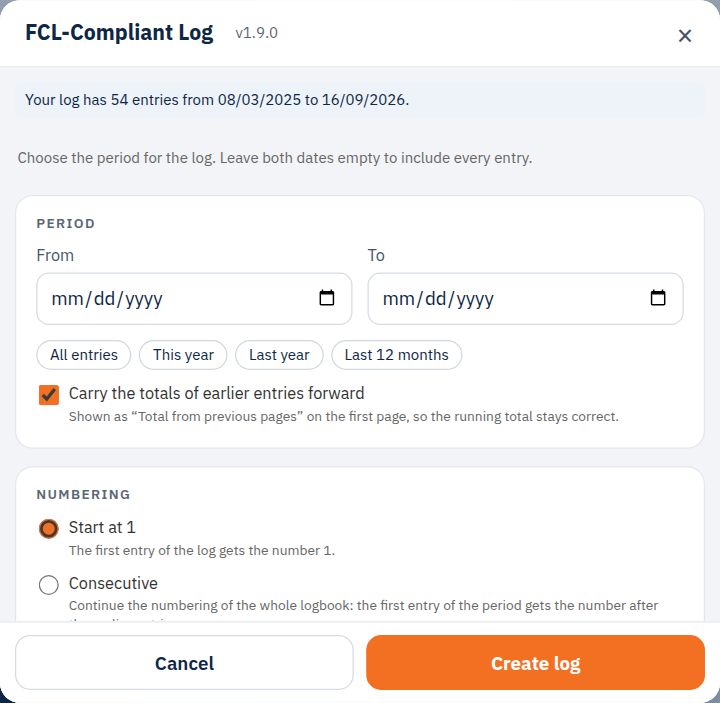
Choosing the period. Before the log is created you pick a period with From and To — or one of the shortcuts All entries, This year, Last year, Last 12 months. Leave both dates empty to include every entry.
With Carry the totals of earlier entries forward (on by default) the entries before the period are added up and shown as “Total from previous pages” on the first page, so the running total stays correct. The period is printed in the page header.
Numbering.Start at 1 (the first entry of the log is number 1), Consecutive (the numbering of the whole logbook continues — an entry keeps the same number in every log you create) or Set the starting number (you enter the number of the first entry).
Period and numbering.
A page of the FCL-compliant log.
12Logbook & account
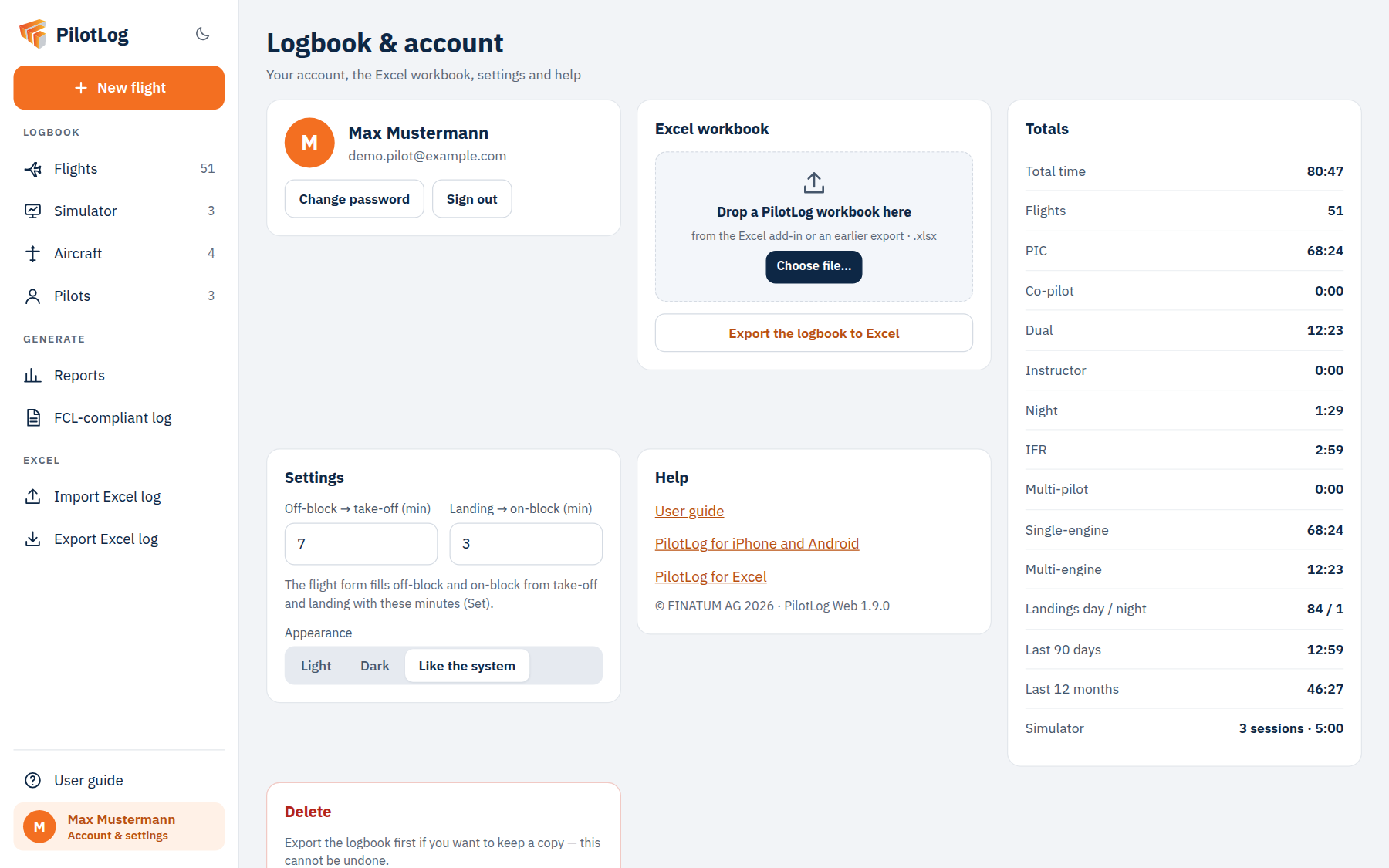
Click your name at the bottom of the navigation. The page brings together everything about your account and your logbook as a whole:
Logbook & account.
Card
What you find there
Your profile
Change password and Sign out.
Excel workbook
Drop a PILOTLOG workbook onto the box, or Choose file…, to import it (2). Export the logbook to Excel saves your complete logbook — all four sheets with totals, images and signatures — as an Excel file: a good backup, and the right template for preparing entries in Excel. If you work with the Excel add-in, you can also synchronise the workbook directly — see 13.
Totals
Total time, flights, PIC, co-pilot, dual, instructor, night, IFR, multi-pilot, single- and multi-engine, landings, the last 90 days, the last 12 months and simulator time.
Settings
The minutes from off-block to take-off and from landing to on-block used by Set in the flight form; the appearance — Light, Dark or Like the system.
Help
This guide, PILOTLOG for iPhone and Android, PILOTLOG for Excel, and the version.
Delete
Delete my logbook empties the logbook and keeps the account; Close my account deletes the account and the logbook for good. Both ask for your password.
Administrators also find Manage user accounts here — accounts, the registration policy and password resets. Administrators cannot see anyone's logbook.
13PILOTLOG in Excel (add-in)
The PILOTLOG add-in (version 1.10.0) turns Excel into your logbook: the four sheets FLIGHTLOG, SIMLOG, AIRCRAFT and PILOTS, with the same dialogs, calculations,
reports and FCL-compliant log as the browser version. It is the right choice if you like to see and keep your logbook as a spreadsheet, or want a copy of it on your own computer.
With Pull Log and Push Log the workbook can be synchronised with your PILOTLOG web logbook.
Since version 1.9.0 the forms and the welcome pane of the add-in look like PILOTLOG in the browser and on the phone.
Requirements: Microsoft Excel with support for Office add-ins (Excel for Microsoft 365 or a current Excel version, on Windows, Mac or in the browser).
Once the add-in is installed, a PilotLog tab appears in the Excel ribbon; if it is missing, look under Insert → My Add-ins.
Pull Log and Push Log need an internet connection and your PILOTLOG account (2); everything else works offline and without signing in.
The PilotLog tab
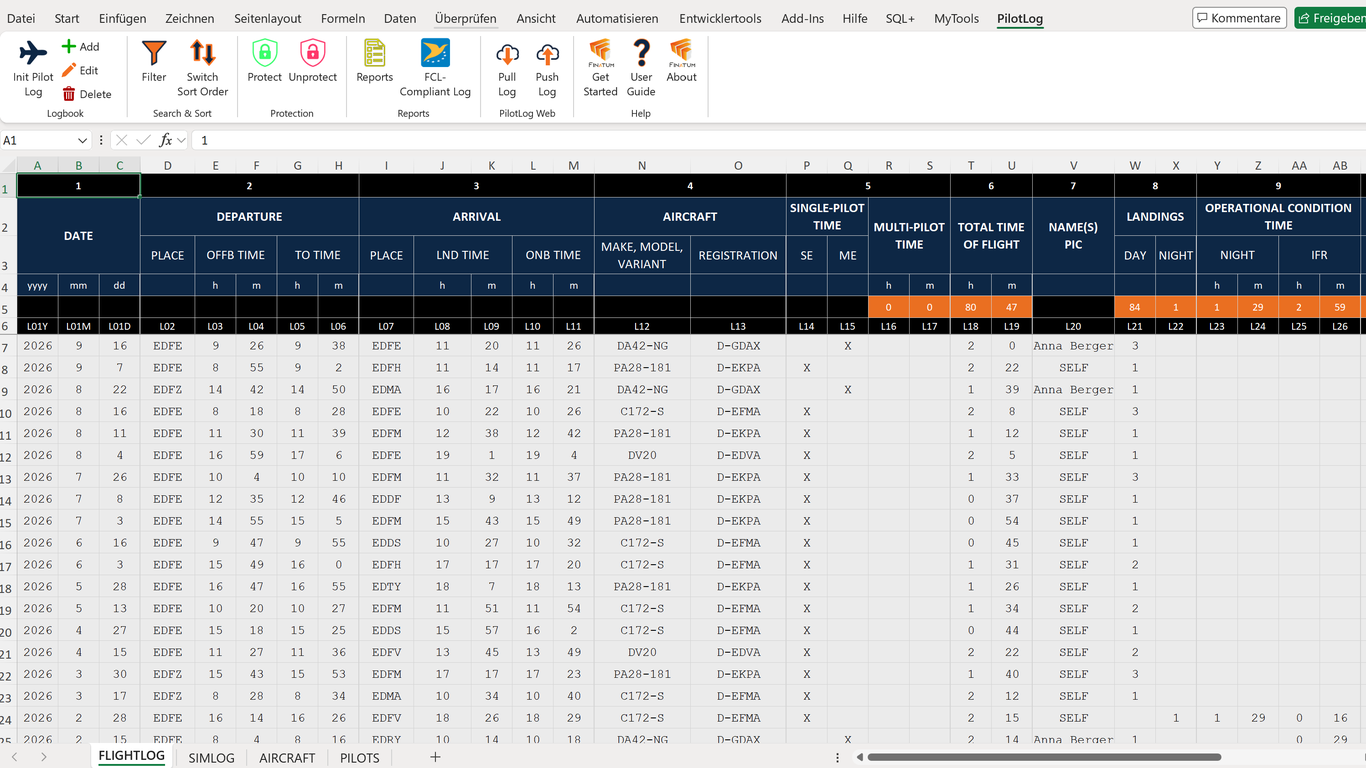
In Excel, PILOTLOG works from its own tab in the ribbon. The buttons do what the navigation does in the browser, plus Init Pilot Log, Protection, PilotLog Web and Get Started.
The PilotLog tab and the FLIGHTLOG sheet in Excel.
Group
Button
What it does
Logbook
Init Pilot Log
Prepares the open workbook as a logbook: creates the four sheets with headings, column codes, colours and the orange totals line. Do this once, in a new workbook; PILOTLOG asks for confirmation first.
Logbook
Add · Edit · Delete
Work on the sheet that is open. The forms are the same as in the browser (3–6): aircraft buttons, aerodrome suggestions, role buttons, calculated times, checks and warnings, signatures and images. Edit and Delete first ask which entry you mean — a flight by date, registration and off-block time; if a row is selected in the sheet, it is preselected.
Search & Sort
Filter · Switch Sort Order
Filter shows only the entries of the open sheet that match your search, or removes the filter again (8). Switch Sort Order reverses the order of all four sheets: newest entries first, or oldest first (9).
Protection
Protect · Unprotect
The PILOTLOG sheets are protected so that headings, formulas and totals cannot be changed by accident. Unprotect releases all four sheets for manual editing, Protect locks them again. Only the button that makes sense at the moment is available.
Reports
Reports · FCL-Compliant Log
The nine reports (10): choose one, and it opens in a preview — for Hours per Type with the choice of table, bar chart or donut — with Save as PDF and Save as Excel. And the printable EASA FCL.050 log as PDF (11).
PilotLog Web
Pull Log · Push Log
Synchronise the workbook with your PILOTLOG web logbook — see below. A free PILOTLOG account is needed.
Help
Get Started · User Guide · About
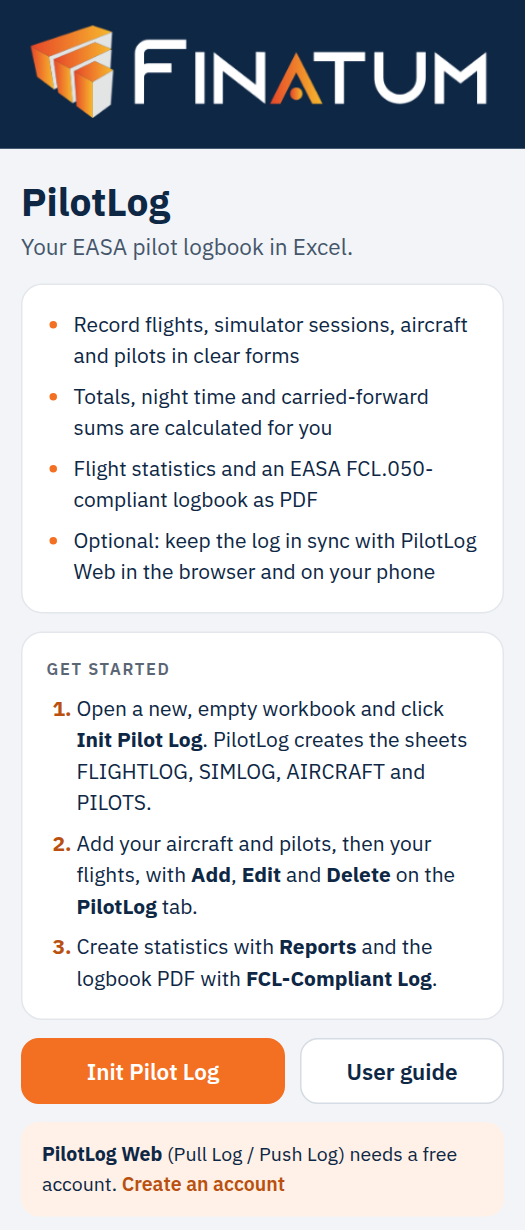
Get Started opens a welcome pane with a short introduction, links to support and privacy, and the version of the add-in (1.10.0). The version is also shown under the Help group of the ribbon (Help · v1.10.0). User Guide opens this guide. About opens finatum.de.
Get Started: the welcome pane in Excel.
Working in Excel
Open a new workbook, choose the PilotLog tab and click Init Pilot Log.
Add your aircraft and pilots first (yourself with the alias SELF, see 4), then your flights with Add.
Each new entry is written into the sheet at the position given by the sort order; the orange totals line is updated at once. Signatures and images are stored in the workbook itself.
Save the workbook as usual. Keep it like any other Excel file: it is your own copy of the logbook.
If you maintain the sheets by hand — for example to correct many entries at once — click Unprotect first, and Protect again afterwards.
Keep the column layout as it is: the add-in, the browser version and the Excel import rely on it.
Pull Log and Push Log
Both buttons work with the same account as the browser and the phone. They exchange all four sheets, including images and signatures, between the workbook and your web logbook.
Pull Log
Loads FLIGHTLOG, SIMLOG, AIRCRAFT and PILOTS from your web logbook into the workbook. The four sheets are replaced by the web logbook.
Push Log
Copies the four sheets of the workbook into your web logbook. The web logbook is replaced by the workbook.
Click Pull Log or Push Log in the group PilotLog Web. The workbook must have been prepared with Init Pilot Log first; otherwise PILOTLOG tells you so.
Sign in with your PILOTLOG e-mail address and password — the same as at finatum.de/pilotlog. No account yet? Use Create an account in the dialog.
Tick Stay signed in on this computer if you do not want to sign in every time; Sign out / use another account ends it.
The Server field normally stays at https://finatum.de/pilotlog/.
Click the button of the dialog (Pull Log or Push Log; at the first sign-in Log In & Pull Log / Log In & Push Log).
If entries would be deleted by the replacement — for example flights that exist only on the phone when you push — PILOTLOG lists them first (number per sheet and a few examples) and asks Do you want to proceed? Nothing is changed until you confirm.
When it is done, PILOTLOG reports how many flights, simulator sessions, aircraft, pilots and images were transferred. With Push, entries that were incomplete or repeated in the workbook are not transferred and are listed.
If the sign-in has expired, PILOTLOG asks you to sign in again.
Replace, not merge. Pull and Push make one side equal to the other. Work in one place at a time: Pull before you start in Excel, Push when you are finished. If you logged flights on the phone in between, a Push would remove them — read the list in the warning and cancel if it shows entries you want to keep.
To add entries without replacing anything, use Import Excel log in the browser with Add to my logbook (2).
14PILOTLOG on your phone
At finatum.de/pilotlog/m PILOTLOG is laid out for the phone — for logging a flight right after landing, looking something up, or showing your recency.
Sign in with the same account; it is the same logbook.
Tip: put PILOTLOG on your home screen. iPhone: in Safari tap Share → Add to Home Screen.
Android: in Chrome tap ⋮ → Add to Home screen. PILOTLOG then opens full-screen like an app and stays signed in.
Flights, simulator, aircraft, pilots
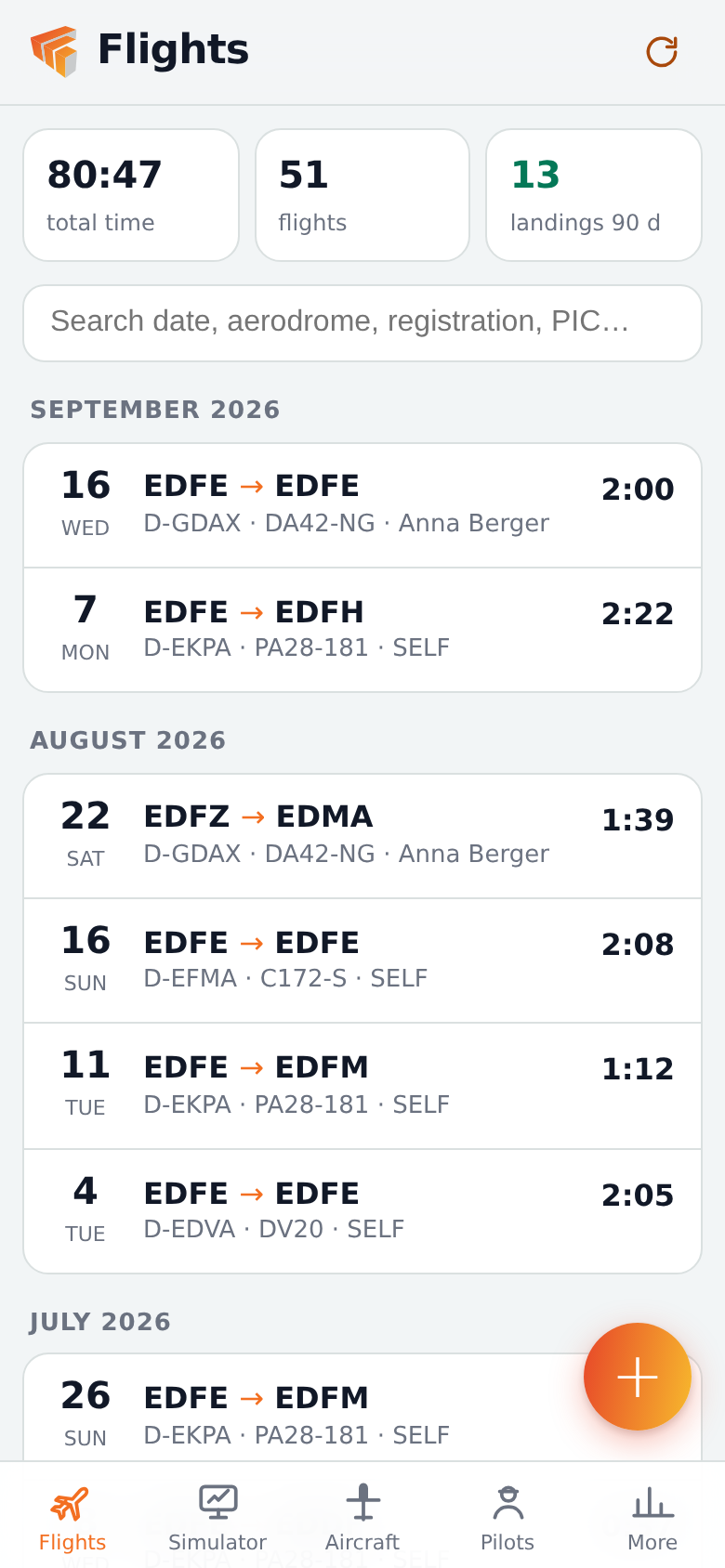
The tabs at the bottom lead to the four parts of the logbook. Flights are listed by month, newest first, with the total time, the number of flights and your landings in the last 90 days at the top.
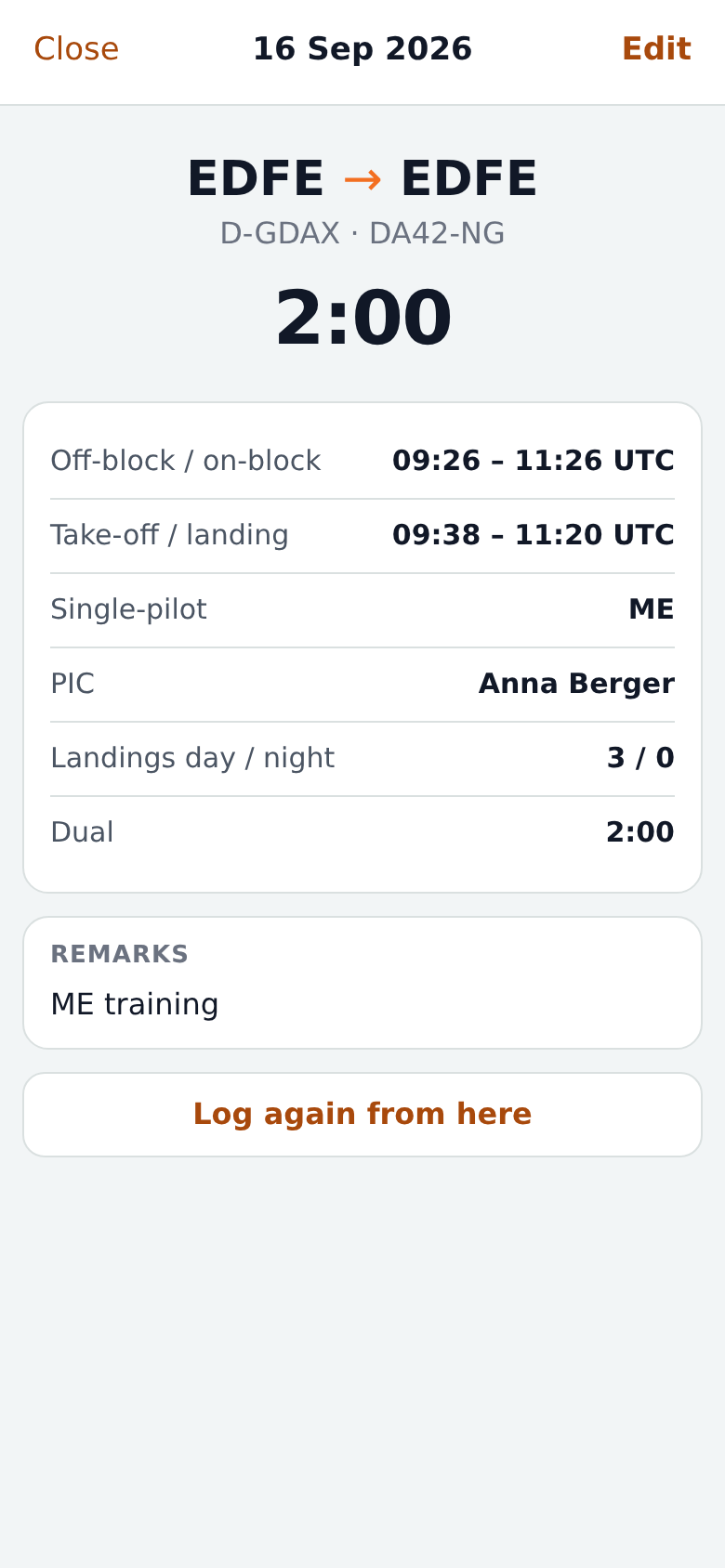
Search for a date, aerodrome, registration or pilot. Tap a flight to see all its details; Log again from here starts a new flight with the same aircraft, departing from where the last one arrived.
The orange + adds an entry to the tab you are on.
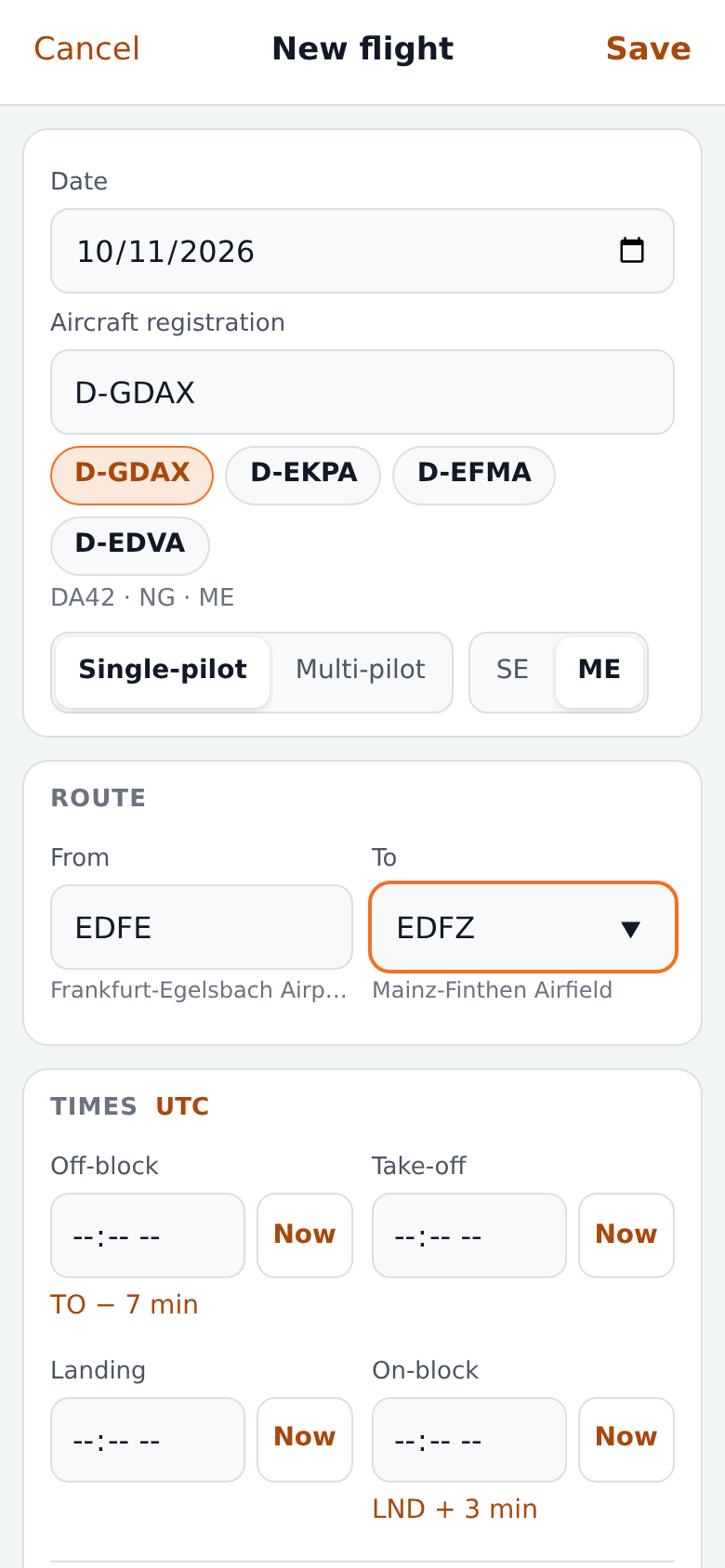
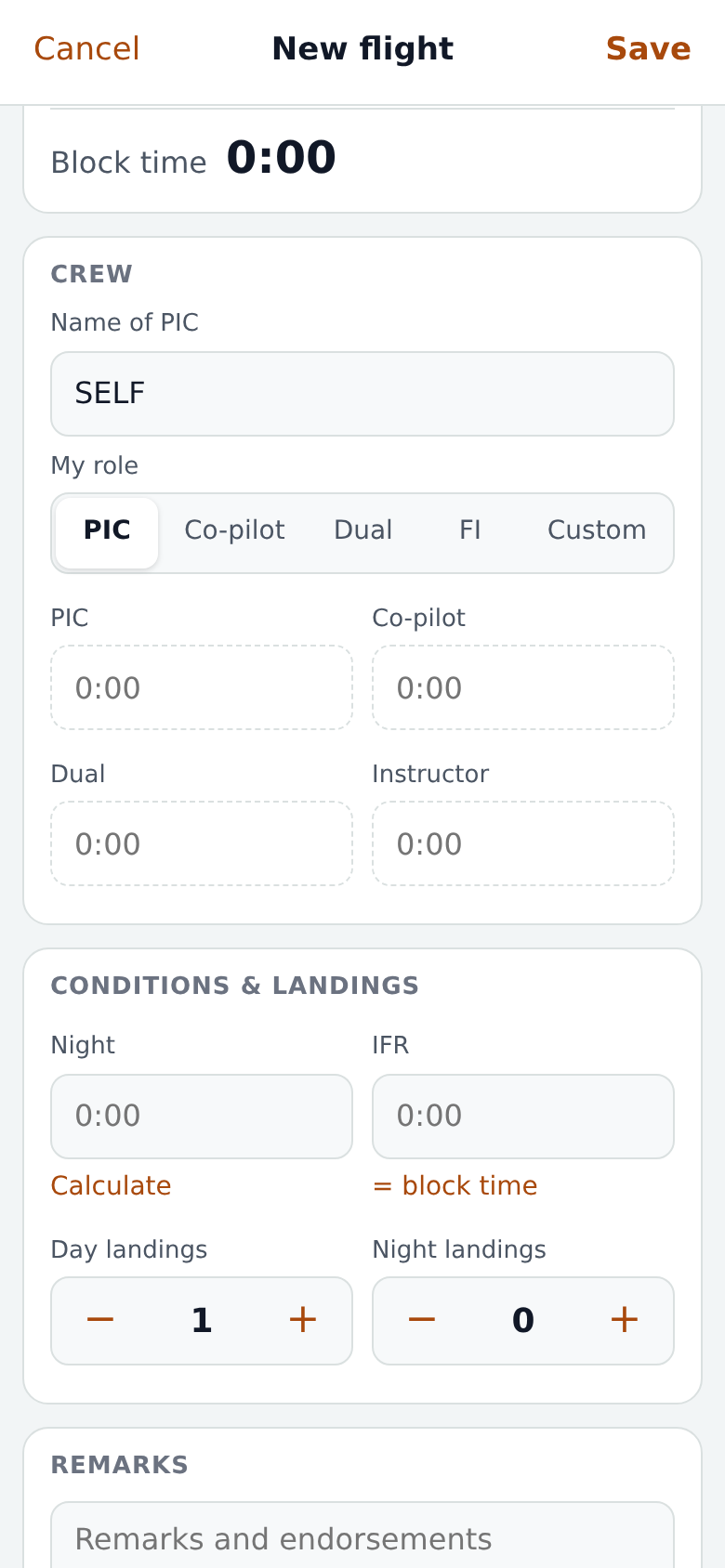
Flights by month.A flight in detail.New flight: aircraft, route, times.New flight: crew and role.
Logging a flight on the phone
Aircraft — the aircraft you flew last are offered as buttons; make, model and SE/ME are filled in.
Route — type the ICAO codes; the aerodrome names are shown underneath.
Times in UTC with the phone's time picker. Now puts in the current UTC time — tap it at off-block, take-off, landing and on-block.
TO − 7 min and LND + 3 min derive the block times from take-off and landing (offsets adjustable under More).
Name of PIC — SELF, a pilot from your list, or any name.
My role — PIC, Co-pilot, Dual, FI or Custom. The role takes the whole block time and follows every change of the times; with Custom you enter the four times yourself. The last role you used is preselected.
Night time is calculated automatically from the civil twilight as soon as date, aerodromes and block times are known; IFR with = block time in one tap.
Landings with + and −, remarks, and a photo (camera or library) or a signature drawn with the finger.
The same checks and warnings as in the browser apply before saving.
Recency, totals, reports
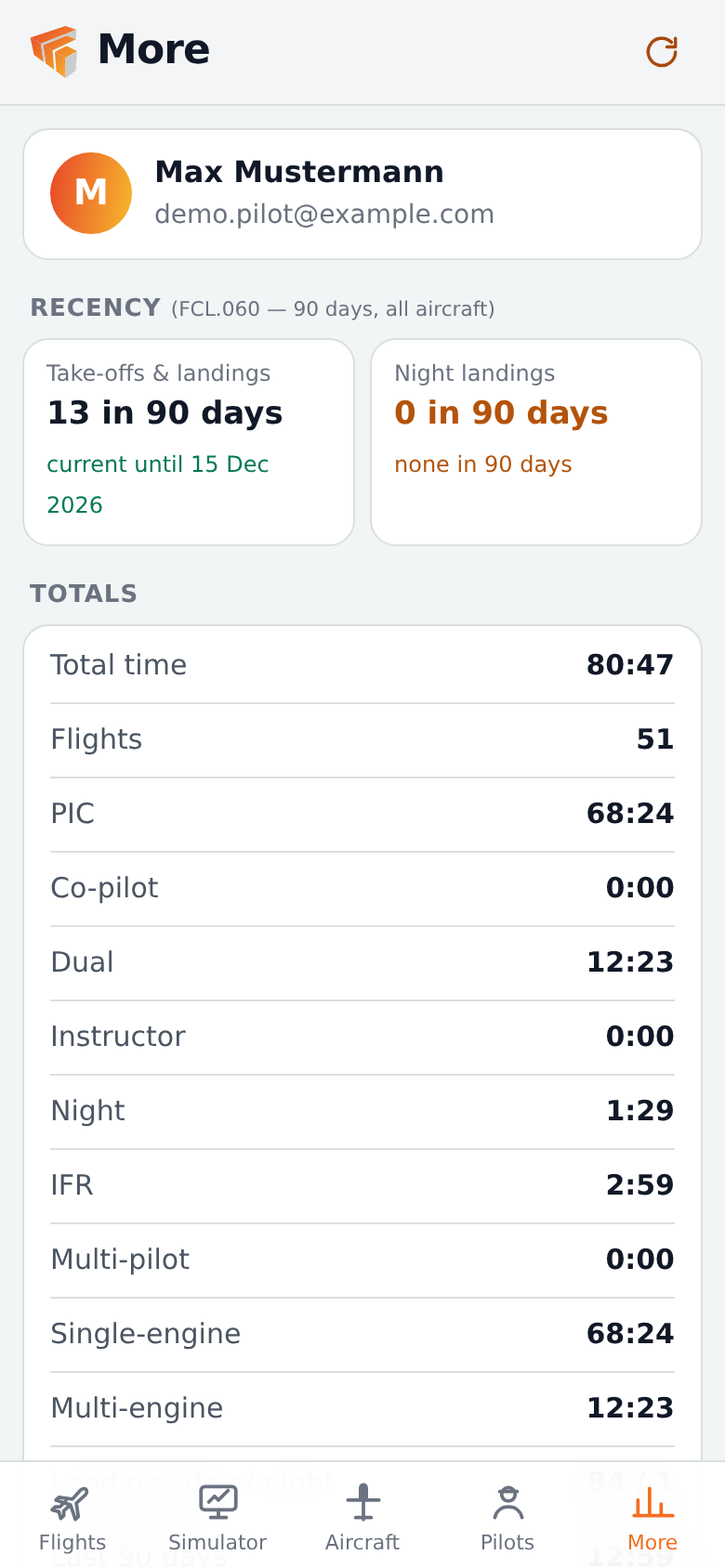
The More tab shows your take-off and landing recency for the last 90 days (FCL.060) with the date until which you are current, night landings, and your totals:
total time, PIC, co-pilot, dual, instructor, night, IFR, multi-pilot, SE and ME, landings, the last 90 days, the last 12 months, this year and simulator time.
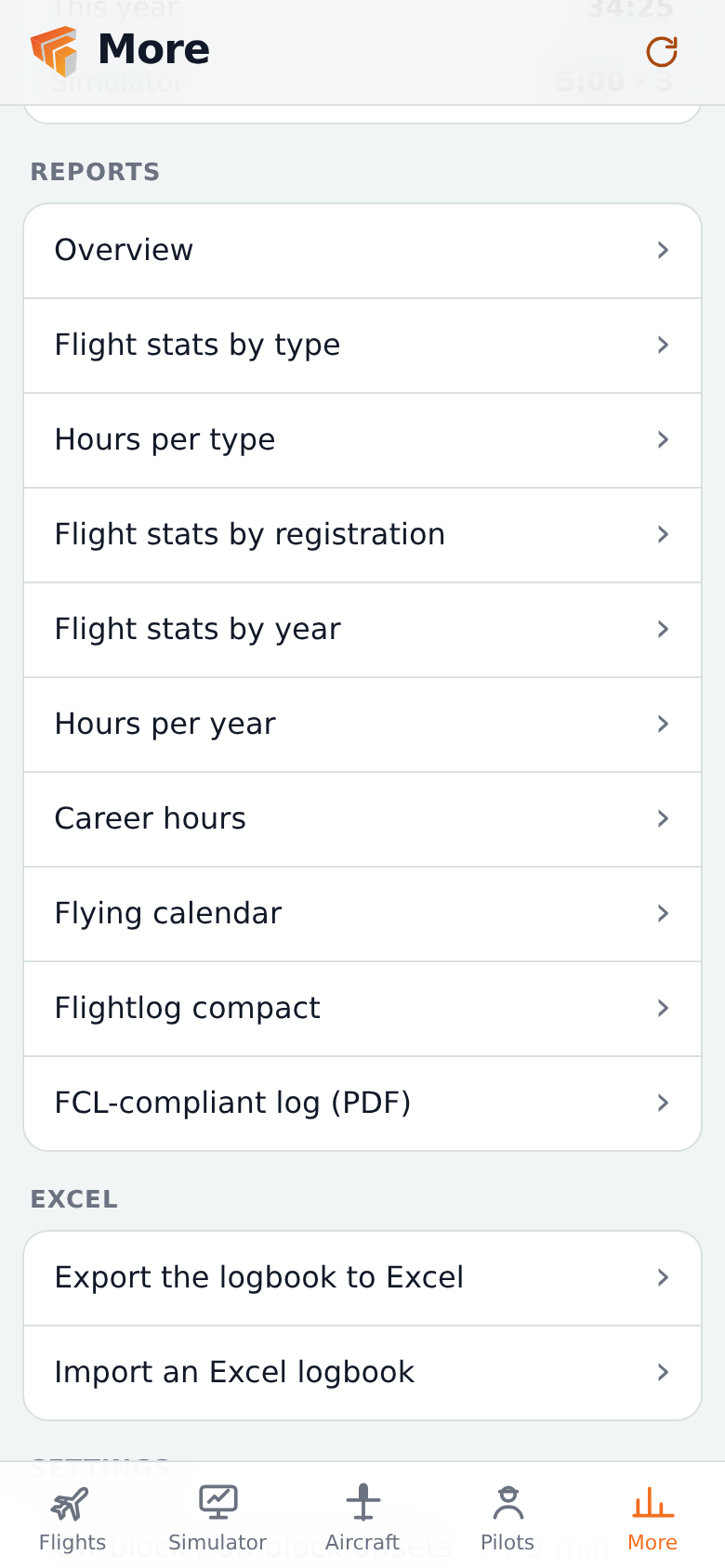
From there you also open the nine reports (with the same choice of table, bar chart or donut for Hours per Type), create the FCL-compliant log, export to or import from Excel (in the PILOTLOG format, see 2), adjust the block-time offsets and the appearance, change your password, sign out or delete your account.
Files are handed to the phone's share sheet — save them to Files, send them by mail or print them.
Recency and totals.Reports, Excel and settings.A report on the phone.Sign-in on the phone.
Without a connection
The phone keeps a copy of your logbook. Without a connection — in the air, in the hangar, abroad — PILOTLOG opens with this copy so you can look things up.
New entries and changes need a connection; PILOTLOG tells you so instead of losing them. Pull the latest state with the ↻ button at the top.
15Good to know
All times are UTC, as the logbook requires.
One logbook everywhere — changes made in the browser show up on the phone the next time it updates (on opening, after a while in the background, or with ↻), and the other way round.
Empty instead of zero — times of 0:00 and zero landings stay empty.
Excel import works only with files in the PILOTLOG format — easiest when you start from an exported (empty) logbook.
Your data is private to your account. Keep your own copy with Export Excel log from time to time.
Light or dark — the moon/sun icon next to the logo, or Appearance on the account page; “Like the system” follows your computer.
Signing out on a phone removes the copy of the logbook from that phone. Changing your password signs out all other phones. A phone stays signed in for 180 days after it was last used.
Excel add-in and web logbook are synchronised only when you click Pull Log or Push Log — and each of them replaces the other side (13).
16Contact
For feedback or questions, write to pilotlog@finatum.de. We look forward to hearing from you.
Benutzerhandbuch · Version 1.10.0
PILOTLOG — Ihr EASA-Flugbuch, im Browser, auf dem Smartphone und in Excel
Flüge erfassen wie nie zuvor: schneller, sauberer, einfacher, genauer.
PILOTLOG führt Ihre Flüge, Simulatorsitzungen, Flugzeuge und Mitpiloten in einem Flugbuch. Sie arbeiten damit in jedem Webbrowser unter
finatum.de/pilotlog, auf Ihrem iPhone oder Android-Smartphone unter
finatum.de/pilotlog/m und — wenn Sie Ihr Flugbuch gern in einer Tabelle führen — in Excel mit dem
PILOTLOG-Add-in. Browser und Smartphone zeigen dasselbe Flugbuch: Ein Flug, den Sie direkt nach der Landung
auf dem Smartphone eintragen, ist einen Moment später im Browser — und umgekehrt. Mit Pull Log und Push Log
gleichen Sie das Excel-Add-in jederzeit mit diesem Flugbuch ab.
EASA-Format
Die Spalten des EASA-Part-FCL-Flugbuchs und ein druckbares, FCL-konformes PDF-Flugbuch.
Weniger tippen
Flugzeuge und Piloten werden einmal erfasst und vorgeschlagen; Flugplätze werden über den ICAO-Code ergänzt.
Automatisch berechnet
Blockzeit, Nachtflugzeit aus der bürgerlichen Dämmerung, Summen und Landungs-Recency.
Geprüft bei der Eingabe
Fehlende Angaben, nicht aufgehende Funktionszeiten und fehlende Berechtigungen werden vor dem Speichern gemeldet.
Privat
Ihr Flugbuch gehört zu Ihrem Konto. Niemand sonst — auch kein Administrator — kann es lesen.
Ihre Daten
Jederzeit alles nach Excel exportieren; neun Berichte und Diagramme als PDF oder Excel.
Drei Wege zum Flugbuch
Browser am Computer, die App-ähnliche Seite auf dem Smartphone und das Excel-Add-in — ein Konto, ein Flugbuch.
2Erste Schritte
Öffnen Sie finatum.de/pilotlog und melden Sie sich mit E-Mail-Adresse und Passwort an.
Wenn Sie noch kein Konto haben, wählen Sie Create one und geben Namen, E-Mail-Adresse und ein Passwort mit mindestens 12 Zeichen ein.
Anmelden oder Konto anlegen.
Die Oberfläche
PILOTLOG im Browser sieht aus und funktioniert wie PILOTLOG auf dem Smartphone, nur für einen größeren Bildschirm angeordnet: links die Navigation, in der Mitte der geöffnete Teil Ihres Flugbuchs und rechts der ausgewählte Eintrag.
Flüge: oben Summen und Recency, darunter die Flüge nach Monaten und rechts der ausgewählte Flug mit Edit, Log again und Delete.
In der Navigation
Funktion
New flight
Die orange Schaltfläche fügt dem geöffneten Teil einen Eintrag hinzu — einen Flug, eine Simulatorsitzung, ein Flugzeug oder einen Piloten (3–6).
Logbook: Flights · Simulator · Aircraft · Pilots
Die vier Teile des Flugbuchs, jeweils mit der Anzahl der Einträge.
Generate: Reports · FCL-compliant log
Statistiken und Diagramme als PDF oder Excel; das druckbare EASA-Flugbuch (10, 11).
Version
Die Version von PILOTLOG steht oben in der Navigation neben Logbook (z. B. v1.10.0); das Excel-Add-in hat dieselbe Version.
Import and export: Import paper logbook · Import Excel log · Export Excel log
Ein Papierflugbuch mit Hilfe von Claude übernehmen (2); ein vorhandenes Flugbuch aus einer Excel-Datei laden; das ganze Flugbuch als Excel-Datei speichern (2, 12).
User guide · Ihr Name
Öffnet dieses Handbuch · öffnet Logbook & account mit Passwort, Einstellungen, Summen und Hilfe (12). Das Mond-/Sonnensymbol neben dem Logo wechselt zwischen heller und dunkler Darstellung.
Kacheln oben — Gesamtflugzeit, PIC-Zeit, Anzahl der Flüge und Flugplätze sowie Ihre Landungen und Nachtlandungen der letzten 90 Tage, grün, wenn Sie „current“ sind (FCL.060).
Die Liste — Flüge und Simulatorsitzungen sind nach Monaten gruppiert, mit Anzahl und Zeit je Monat. Kennzeichnungen zeigen ME, IFR, Nacht (N), Multi-Pilot (MP), Dual, Fluglehrer (FI) und Anhänge (⎘).
Auswählen — ein Klick zeigt den Eintrag rechts; ↑↓ bewegen die Auswahl, Enter oder ein Doppelklick öffnet ihn zum Bearbeiten. Lange Flugbücher zeigen 150 Einträge auf einmal; Show more lädt die nächsten.
Liste oder EASA-Spalten — der Umschalter oben rechts zeigt dieselben Einträge in den Spalten des EASA-Papierflugbuchs mit der orangen Summenzeile, wie im Excel-Add-in. PILOTLOG merkt sich Ihre Wahl.
Die Ansicht EASA columns: der Aufbau des Papierflugbuchs und des Excel-Add-ins.
Vorhandenes Flugbuch übernehmen
Wenn Sie Ihr PILOTLOG-Flugbuch bereits in einer Excel-Datei führen, müssen Sie nichts neu eintippen.
Klicken Sie in der Navigation auf Import Excel log und wählen Sie die Datei — oder ziehen Sie die Datei auf das Feld auf der Seite Logbook & account.
PILOTLOG liest die vier Blätter und zeigt, wie viele Flüge, Simulatorsitzungen, Flugzeuge, Piloten und Bilder gefunden wurden, neben dem aktuellen Stand Ihres Flugbuchs.
Wählen Sie Add to my logbook, um nur Neues zu übernehmen, oder Replace my logbook, um mit dem Inhalt der Datei neu zu beginnen, und klicken Sie auf Import.
Bereits vorhandene oder unvollständige Einträge werden übersprungen und am Ende aufgelistet. An Einträge angehängte Bilder und Unterschriften werden mit übernommen.
Wichtig — die Datei muss das PILOTLOG-Format haben. Eine Excel-Datei lässt sich nur importieren, wenn sie wie ein PILOTLOG-Flugbuch aufgebaut ist:
mit den Blättern FLIGHTLOG, SIMLOG, AIRCRAFT und PILOTS, ihrer Spaltenaufteilung und den Spaltencodes (L01 …). Andere Excel-Flugbücher können nicht gelesen werden.
Am sichersten erhalten Sie das richtige Format so: Exportieren Sie zuerst Ihr (noch leeres) Flugbuch mit Export Excel log, übertragen Sie Ihre Einträge in diese Datei und importieren Sie sie dann.
Aus einem Papierflugbuch
Jahre an Flügen aus einem Papierflugbuch müssen Sie nicht abtippen. Claude, der KI-Assistent von Anthropic, liest Ihre eingescannten Seiten und schreibt sie in eine Arbeitsmappe im Format von PILOTLOG; PILOTLOG prüft die Arbeitsmappe und legt die Einträge an. Klicken Sie in der Navigation auf Import paper logbook.
Mit Claude übertragen. Klicken Sie auf Copy instructions and open Claude. Claude öffnet sich in einem neuen Tab mit leerem Eingabefeld; die Anweisungen liegen in der Zwischenablage. In Claude:
einfügen ins Eingabefeld (Strg+V, am Mac ⌘V) — weil sie lang sind, zeigt Claude sie als Kästchen mit der Aufschrift „PASTED“ statt als Text, das ist richtig;
anhängen Sie Ihr eingescanntes Flugbuch (ein PDF oder Fotos der Seiten), indem Sie es ins Eingabefeld ziehen oder unten links auf + klicken; und
senden Sie mit der Senden-Schaltfläche unten rechts (oder Enter). Claude liefert PilotLog-Transcription.xlsx und eine kurze Zusammenfassung. Senden Sie ohne Scan, fragt Claude danach.
Hochladen und prüfen. Klicken Sie in PILOTLOG auf I have the workbook: upload it und ziehen Sie die Arbeitsmappe auf das Feld. PILOTLOG zeigt, was Claude übertragen hat, welche Seitensummen vom Papier abweichen und was Claude Sie zu prüfen bittet; darunter jeden Eintrag, wie er übernommen wird, und die Befunde.
Übernehmen.See what the import changes fasst das Ergebnis zusammen; Import fügt die Flüge und Simulatorsitzungen hinzu und — wenn die Häkchen gesetzt bleiben — die neuen Luftfahrzeuge und Piloten.
Schritt 1: Anweisungen kopieren, Claude öffnen, Scan anhängen.Schritt 2: was Claude übertragen hat und was es Sie zu prüfen bittet.
Die Anweisungen sind für jeden Piloten dieselben. Sie enthalten die EASA-Regeln für Flugbücher (AMC1 FCL.050) und den genauen Aufbau der Arbeitsmappe — Sie hängen also nur den Scan an und müssen nichts auswählen. Unklare Stellen entscheidet Claude selbst — eine überschriebene Ziffer, einen Rechenfehler in einer Seitensumme — und dokumentiert jede Entscheidung in der Arbeitsmappe. Show the instructions zeigt sie an; Sie können sie auch als Textdatei herunterladen.
Die Arbeitsmappe hat je ein Blatt für Flüge, Simulatorsitzungen, Luftfahrzeuge und Piloten und vier Blätter, die die Übertragung dokumentieren: PAGE-TOTALS (die auf Papier geschriebenen Summen gegen die nachgerechneten), MAPPING-RULES (die allgemein angewandten Regeln), DECISION-LOG (jede Korrektur, Zeile für Zeile) und REVIEW (was Sie prüfen sollten). Sie können sie in Excel öffnen und Werte vor dem Hochladen korrigieren. Bewahren Sie sie zusammen mit Ihrem Papierflugbuch auf.
Jeder Eintrag, wie er übernommen wird; rechts die Befunde des ausgewählten Eintrags.
Befunde. PILOTLOG prüft jeden Eintrag wie beim Eintragen eines Fluges: die Gesamtzeit gegen Off-Block und On-Block, die Funktionszeiten gegen die Gesamtzeit, die aus den Flugplätzen neu berechnete Nachtzeit, unbekannte Flugplätze und Einträge, die schon in Ihrem Flugbuch stehen — diese werden übersprungen. Auch Einträge, die Claude als unsicher markiert hat, erscheinen als Befund. Klicken Sie auf einen Eintrag, um seine Befunde zu sehen, und wählen Sie eine Korrektur oder Checked — für einen Eintrag oder mit der Schaltfläche neben All für alle Befunde dieser Art. Leave out nimmt einen Eintrag aus.
Zeiten in Kursivschrift ergänzt PILOTLOG: Wo das Papier keine Start- und Landezeiten hat, gilt Start = Off-Block + P und Landung = On-Block − Q; P und Q werden aus Ihren eigenen Flügen vorgeschlagen. Sie können sie über der Liste ändern.
Schritt 3: die Wirkung auf Ihre Summen und die Luftfahrzeuge und Piloten, die hinzukommen.
What the import changes zeigt für jede Summe den Wert in der Arbeitsmappe, was PILOTLOG ergänzt hat, was Ihre Entscheidungen geändert haben und das Ergebnis — dazu die Einträge, die nicht übernommen werden, und die Luftfahrzeuge und Piloten, die hinzukommen.
Ihr eigenes Claude-Konto. Sie brauchen ein Claude-Konto (claude.ai, jeder Tarif), in dem „Code execution and file creation“ eingeschaltet ist (Settings → Capabilities; bei den meisten Konten voreingestellt). PILOTLOG sendet nichts an Claude, und Ihr Scan erreicht PILOTLOG nie — nur die Arbeitsmappe, die Sie hochladen.
Ein PDF mit bis zu 100 Seiten wird mit seinen Bildern gelesen. Bei einem langen Flugbuch senden Sie etwa 25 Seiten pro Chat und laden die Arbeitsmappen nacheinander hoch: Bereits übernommene Einträge werden erkannt und übersprungen. Begonnene Prüfungen bleiben in Ihrem Browser gespeichert, Sie können später weitermachen.
3Flugzeuge
Erfassen Sie einmalig alle Flugzeuge, die Sie besitzen, mieten oder chartern. Beim Eintragen eines Flugs ergänzt PILOTLOG dann Hersteller, Muster und Klasse, bietet die Flugzeuge als Schaltflächen an und weiß, ob IFR-Zeit möglich ist.
Wählen Sie in der Navigation Aircraft und klicken Sie auf New aircraft.
Geben Sie das Kennzeichen (Registration, z. B. D-EFMA), Hersteller und Muster (Make & Model, z. B. C172) und bei Bedarf die Variante (z. B. S) ein.
Wählen Sie die Kategorie — SE einmotorig oder ME mehrmotorig — und die Flugregeln — ALL oder VFR Only.
Klicken Sie auf Add aircraft.
Flugzeug hinzufügen.Flugzeuge mit Flugzeit und Anzahl der Flüge. Show flights listet die Flüge des ausgewählten Flugzeugs.
Jedes Kennzeichen kann nur einmal vorkommen. Bei einem Flugzeug mit VFR Only bleibt die IFR-Zeit eines Flugs leer.
4Piloten
Erfassen Sie sich selbst und die Piloten, mit denen Sie regelmäßig fliegen — Fluglehrer, Prüfer, Kapitäne. Sie werden dann als verantwortlicher Pilot (PIC) eines Flugs vorgeschlagen.
Wählen Sie in der Navigation Pilots und klicken Sie auf New pilot.
Geben Sie Vor- und Nachnamen ein. PILOTLOG schlägt einen Alias vor (z. B. LAU.SC), den Sie ändern können.
Geben Sie Nummer und Land der Lizenz ein — beides oder keines — und wählen Sie den Lizenztyp.
Wählen Sie die Berechtigungen (Night, IFR, ME) und klicken Sie auf Add pilot.
Pilot hinzufügen. Bei CPL wird die Nachtflugberechtigung automatisch gesetzt, bei ATPL alle drei.
Tragen Sie sich selbst mit dem Alias SELF ein. SELF ist der voreingestellte PIC neuer Flüge, und Ihr Name und Ihre Lizenz aus diesem Eintrag erscheinen im FCL-konformen Flugbuch.
Die Berechtigungen ergeben sich aus dem Lizenztyp: Eine CPL schließt die Nachtflugberechtigung ein, eine ATPL Nacht, IFR und mehrmotorig. PILOTLOG nutzt die Berechtigungen, um Sie z. B. zu warnen, wenn Nachtflugzeit für einen Piloten ohne Nachtflugberechtigung eingetragen wird.
5Flüge
Klicken Sie auf New flight. Das Flugformular gleitet von rechts herein, mit dem heutigen Datum und SELF als PIC. Es ist dasselbe Formular wie im Excel-Add-in.
Flugzeuge als Schaltflächen, Strecke und Zeiten; die Gesamtzeit wird während der Eingabe berechnet.Ihre Funktion, Nacht- und IFR-Zeit, Landungen und Bemerkungen.
Mit der Tastatur arbeiten:Tab springt von Feld zu Feld. In Feldern mit Vorschlägen — Kennzeichen, Flugplätze, Pilot — übernimmt Tab auch den Vorschlag, wenn Ihre Eingabe nur zu einem Eintrag passt („d-ef“ → D-EFMA). Wählen Sie in einer Auswahlliste mit der Maus, springt der Cursor automatisch ins nächste Feld.
Das Flugformular im Einzelnen
Abschnitt
So funktioniert es
Datum & Flugzeug
Heute ist vorausgewählt. Klicken Sie eines Ihrer Flugzeuge in der Schaltflächenreihe an oder tippen Sie das Kennzeichen: Hersteller, Muster, Variante und SE/ME werden ergänzt. Ein Flugzeug, das nicht in Ihrer Liste steht, tippen Sie einfach mit Hersteller und Muster ein.
Strecke & Zeiten (UTC)
Beginnen Sie mit dem ICAO-Code von Abflug und Ankunft; passende Flugplätze werden vorgeschlagen („EDF“ → EDFE, EDFH, EDFM …). Geben Sie Take-off, Landing, Off-block und On-block in Stunden und Minuten ein. Mit Set leitet PILOTLOG die Blockzeiten ab: Off-Block = Start minus Ihre Minuten, On-Block = Landung plus Ihre Minuten. Die Minuten werden gespeichert (vorgegeben 7 und 3) und lassen sich auch auf der Kontoseite einstellen.
Gesamtzeit
Die dunkle Kachel zeigt die Blockzeit von Off-Block bis On-Block, auch über Mitternacht.
Pilotenzeit & Funktion
Single-pilot oder Multi-pilot; Single-Pilot-Zeit wird je nach Flugzeug als ein- oder mehrmotorig gebucht, die Multi-Pilot-Zeit entspricht der Gesamtzeit. Name(s) PIC: SELF, ein Pilot aus Ihrer Liste oder ein beliebiger anderer Name.
My role — PIC, Co-pilot, Dual oder Instructor — übernimmt die gesamte Flugzeit in diese Funktion und leert die anderen; mit Instructor wird auch PIC-Zeit gesetzt. Die vier Zeiten darunter lassen sich auch von Hand setzen.
Bedingungen & Landungen
Night- und IFR-Zeit. Calculate night berechnet die Nachtflugzeit aus der bürgerlichen Dämmerung an beiden Flugplätzen und entlang der Strecke; IFR = block time setzt den ganzen Flug als IFR (nicht bei VFR-only-Flugzeugen). Landungen bei Tag und Nacht mit − und +.
Bemerkungen & Vermerke
Freitext. Mit Add photo oder Sign hängen Sie ein Bild oder eine Unterschrift an (siehe unten).
Klicken Sie auf Add flight. Der Flug erscheint in der Liste und ist ausgewählt; Summen und Recency werden sofort aktualisiert.
Prüfungen und Hinweise
Vor dem Speichern prüft PILOTLOG den Eintrag:
Pflichtangaben: Datum, Kennzeichen und Off-Block-Zeit. Ein Flug mit gleichem Datum, Kennzeichen und gleicher Off-Block-Zeit kann nicht doppelt eingetragen werden.
Hinweise machen auf ungewöhnliche, aber möglicherweise richtige Angaben aufmerksam — Sie können trotzdem speichern: Abflug oder Ankunft fehlt, keine Landungen,
PIC + Co-Pilot + Dual ergibt nicht die Gesamtzeit, Instructor-Zeit größer als PIC-Zeit, oder dem Piloten fehlt die für den Flug nötige Nacht-, IFR- oder ME-Berechtigung.
Zeiten von null bleiben leer, wie im Papierflugbuch — das Flugbuch zeigt nur, was tatsächlich geflogen wurde.
Unterschriften und Bilder
Fluglehrer oder Prüfer können direkt in PILOTLOG unterschreiben: Klicken Sie auf Sign, unterschreiben Sie mit Maus, Stift oder Finger und klicken Sie auf Save.
Alternativ hängen Sie mit Add photo ein Foto oder einen Scan an. Die Bemerkung erhält den Vermerk [IMAGE], das Bild wird beim Flug angezeigt, und die Unterschrift erscheint im FCL-konformen Flugbuch.
Einen Flug unterschreiben.
6Simulatorsitzungen
Wählen Sie in der Navigation Simulator und klicken Sie auf New session. Geben Sie Datum, FSTD-Typ (z. B. FNPT II MCC), die Gesamtzeit der Sitzung und Bemerkungen ein; eine Unterschrift oder ein Bild können Sie wie bei Flügen anhängen.
Sitzungen am selben Tag werden automatisch nummeriert.
Eine Simulatorsitzung hinzufügen.
7Bearbeiten, erneut eintragen, löschen
Wählen Sie einen Eintrag in der Liste aus. Rechts sehen Sie alle Einzelheiten, eine Unterschrift oder ein Bild und die Schaltflächen:
Edit öffnet den Eintrag im selben Formular wie beim Hinzufügen. Abkürzung: Doppelklick auf den Eintrag oder Enter.
Log again (Flüge) beginnt einen neuen Flug mit demselben Flugzeug und PIC, mit Abflug dort, wo der ausgewählte Flug gelandet ist — praktisch für die nächste Etappe.
Delete löscht den Eintrag nach Ihrer Bestätigung; die Taste Entf tut dasselbe.
Show flights (Flugzeuge) listet alle Flüge des ausgewählten Flugzeugs.
In der Ansicht EASA-Spalten funktioniert es genauso: Ein Klick wählt eine Zeile aus, ein Doppelklick öffnet sie zum Bearbeiten.
Der ausgewählte Flug.
Vor dem Löschen fragt PILOTLOG nach.
8Suchen und filtern
Drei Wege helfen beim Finden; sie wirken zusammen, in der Liste wie in der Ansicht EASA-Spalten:
Suche — tippen Sie in das Suchfeld über der Liste: ein Datum (2026-08 oder 16.8.2026), einen Flugplatz, ein Kennzeichen, einen Typ, einen Piloten oder ein Wort aus den Bemerkungen. Mehrere Wörter müssen alle passen.
Schnellfilter (Flüge) — IFR, Night und Multi-pilot zeigen nur die Flüge mit dieser Zeit.
Filter… — der ausführliche Filter für den geöffneten Teil:
Flüge filtern.
Teil
Filtern nach
Flüge
Datum von / bis · Flugplätze Abflug, Ankunft · Flugzeug Typ, Kennzeichen
Simulator
Datum von / bis · FSTD-Typ
Flugzeuge
Hersteller und Muster · Kategorie · Kennzeichen
Piloten
Name oder Alias · Lizenztyp
Alle ausgefüllten Felder gelten zusammen; leere Felder werden ignoriert. Die Listen bieten nur an, was im gewählten Zeitraum in Ihrem Flugbuch vorkommt; die Wahl eines Kennzeichens setzt dessen Typ.
Ein aktiver Filter erscheint als dunkle Markierung neben dem Suchfeld, mit der Zahl der Treffer (z. B. „14 of 51 flights“). Das × darauf hebt ihn auf; passt nichts, setzt Show all Suche, Schnellfilter und Filter auf einmal zurück.
Ein Filter (ab 1.1.2026, Abflug EDFE) zusammen mit dem Schnellfilter IFR.
9Sortierung
Die Schaltfläche neben dem Umschalter List / EASA columns wechselt zwischen Newest first und Oldest first (bei Flugzeugen und Piloten: Z – A und A – Z). Die Sortierung wird für Ihren nächsten Besuch gespeichert und ist dieselbe wie im Excel-Add-in.
Flüge werden nach Datum, Off-Block-Zeit und Kennzeichen sortiert, Simulatorsitzungen nach Datum und Sitzung, Flugzeuge nach Kennzeichen und Piloten nach Alias.
10Berichte
Wählen Sie in der Navigation Reports. Links stehen die Berichte, rechts wird der gewählte angezeigt, berechnet aus allen Ihren Flügen. Save as PDF und Save as Excel speichern ihn — die Excel-Datei enthält echte Zeiten (h:mm), die Sie aufaddieren können.
Die Seite Reports, hier mit dem Overview.
Bericht
Inhalt
Overview
Gesamtflugzeit, eine Linie Ihrer kumulierten Stunden, Flüge, PIC, Dual, IFR, Nacht und Landungen, Ihre Recency der letzten 90 Tage (FCL.060) und Ihre häufigsten Flugplätze.
Flight Stats by Type
Flüge, Tag- und Nachtlandungen, Gesamt-, PIC-, Dual-, IFR- und Lehrerzeit je Flugzeugtyp als Tabelle.
Hours per Type
Die Zeit je Typ, aufgeteilt in PIC und Dual. Wählen Sie die Darstellung: Table with bars, Bar chart oder Donut.
Flight Stats by Registration
Dieselben Werte je Flugzeug.
Flight Stats by Year
Dieselben Werte je Jahr, die Zellen nach Wert schattiert.
Hours per Year
Eine Säule je Jahr, aufgeteilt in PIC und Dual.
Career Hours
Ihre Gesamtflugzeit über die Jahre als Linie, mit Meilensteinen (100 h, 250 h, 500 h …).
Flying Calendar
Stunden je Monat und Jahr als Heatmap — wann Sie am meisten fliegen.
Flightlog Compact
Alle Flüge, je einer pro Zeile.
Hours per Type als Donut.Der Flying Calendar.
Ein Flug ohne Flugzeugtyp wird unter dem Typ gezählt, der für dasselbe Kennzeichen am häufigsten eingetragen ist; der Bericht weist darauf hin.
11FCL-konformes Flugbuch
FCL-compliant log in der Navigation (oder Create PDF… auf der Seite Reports) erstellt ein druckbares PDF Ihres Flugbuchs im bekannten EASA-Part-FCL-Format (FCL.050), aufgebaut wie ein gedrucktes Pilotenlogbuch auf A5-Querseiten: Deckblatt, Piloteninformation aus Ihrem SELF-Eintrag,
eine Notizseite und dann für je zehn Einträge eine linke Seite (Datum, Abflug und Ankunft, Luftfahrzeug, Einzel- und Mehrpilotenzeit, Gesamtzeit, PIC, Landungen) und eine rechte Seite (Nacht- und IFR-Zeit, Funktionszeiten, FSTD-Sitzung, Bemerkungen und Eintragungen, mit Unterschriftszeile).
Jede Seite endet mit Total from this page, Total from previous pages und Total to date; an Einträge angehängte Unterschriften und Bilder werden bei den Bemerkungen gedruckt.
Zeitraum wählen. Vor dem Erstellen wählen Sie den Zeitraum mit From und To — oder eine der Schnellwahlen All entries, This year, Last year, Last 12 months. Lassen Sie beide Daten leer, werden alle Einträge übernommen.
Mit Carry the totals of earlier entries forward (standardmäßig an) werden die Einträge vor dem Zeitraum aufaddiert und auf der ersten Seite als „Total from previous pages“ gezeigt, sodass die laufende Summe stimmt. Der Zeitraum steht in der Seitenkopfzeile.
Nummerierung.Start at 1 (der erste Eintrag des Logs ist Nummer 1), Consecutive (die Nummerierung des gesamten Flugbuchs wird fortgesetzt — ein Eintrag behält in jedem Log dieselbe Nummer) oder Set the starting number (Sie geben die Nummer des ersten Eintrags ein).
Zeitraum und Nummerierung.
Eine Seite des FCL-konformen Flugbuchs.
12Flugbuch & Konto
Klicken Sie unten in der Navigation auf Ihren Namen. Die Seite Logbook & account fasst alles zu Ihrem Konto und zum Flugbuch als Ganzem zusammen:
Logbook & account.
Bereich
Was Sie dort finden
Ihr Profil
Change password (Passwort ändern) und Sign out (abmelden).
Excel workbook
Ziehen Sie eine PILOTLOG-Arbeitsmappe auf das Feld oder wählen Sie Choose file…, um sie zu importieren (2). Export the logbook to Excel speichert Ihr vollständiges Flugbuch — alle vier Blätter mit Summen, Bildern und Unterschriften — als Excel-Datei: eine gute Sicherung und die richtige Vorlage, um Einträge in Excel vorzubereiten. Mit dem Excel-Add-in können Sie die Arbeitsmappe auch direkt abgleichen — siehe 13.
Totals
Gesamtflugzeit, Flüge, PIC, Co-Pilot, Dual, Instructor, Nacht, IFR, Multi-Pilot, ein- und mehrmotorig, Landungen, die letzten 90 Tage, die letzten 12 Monate und die Simulatorzeit.
Settings
Die Minuten von Off-Block bis Start und von Landung bis On-Block für Set im Flugformular; die Darstellung — Light, Dark oder Like the system.
Help
Dieses Handbuch, PILOTLOG für iPhone und Android, PILOTLOG für Excel und die Version.
Delete
Delete my logbook leert das Flugbuch, das Konto bleibt bestehen; Close my account löscht Konto und Flugbuch endgültig. Beides fragt nach Ihrem Passwort.
Administratoren finden hier außerdem Manage user accounts — Konten, Registrierungsregeln und das Zurücksetzen von Passwörtern. Administratoren können kein Flugbuch einsehen.
13PILOTLOG in Excel (Add-in)
Das PILOTLOG-Add-in (Version 1.10.0) macht Excel zu Ihrem Flugbuch: die vier Blätter FLIGHTLOG, SIMLOG, AIRCRAFT und PILOTS, mit denselben Dialogen, Berechnungen,
Berichten und dem FCL-konformen Flugbuch wie im Browser. Es ist die richtige Wahl, wenn Sie Ihr Flugbuch gern als Tabelle sehen und führen oder eine Kopie auf Ihrem eigenen Computer haben möchten.
Mit Pull Log und Push Log gleichen Sie die Arbeitsmappe mit Ihrem PILOTLOG-Web-Flugbuch ab.
Seit Version 1.9.0 sehen die Formulare und der Willkommensbereich des Add-ins aus wie PILOTLOG im Browser und auf dem Smartphone.
Voraussetzungen: Microsoft Excel mit Unterstützung für Office-Add-ins (Excel für Microsoft 365 oder eine aktuelle Excel-Version, unter Windows, Mac oder im Browser).
Ist das Add-in installiert, erscheint in der Excel-Menüleiste das Register PilotLog; fehlt es, finden Sie das Add-in unter Einfügen → Meine Add-ins.
Pull Log und Push Log brauchen eine Internetverbindung und Ihr PILOTLOG-Konto (2); alles andere funktioniert offline und ohne Anmeldung.
Das Register PilotLog
In Excel arbeiten Sie mit PILOTLOG über ein eigenes Register in der Menüleiste. Die Schaltflächen entsprechen der Navigation im Browser, ergänzt um Init Pilot Log, Protection, PilotLog Web und Get Started.
Das Register PilotLog und das Blatt FLIGHTLOG in Excel.
Gruppe
Schaltfläche
Funktion
Logbook
Init Pilot Log
Richtet die geöffnete Arbeitsmappe als Flugbuch ein: legt die vier Blätter mit Überschriften, Spaltencodes, Farben und der orangen Summenzeile an. Das tun Sie einmal, in einer neuen Arbeitsmappe; PILOTLOG fragt vorher nach.
Logbook
Add · Edit · Delete
Arbeiten im geöffneten Blatt. Die Formulare sind dieselben wie im Browser (3–6): Flugzeug-Schaltflächen, Flugplatzvorschläge, Funktions-Schaltflächen, berechnete Zeiten, Prüfungen und Hinweise, Unterschriften und Bilder. Edit und Delete fragen zuerst, welchen Eintrag Sie meinen — einen Flug über Datum, Kennzeichen und Off-Block-Zeit; ist im Blatt eine Zeile ausgewählt, ist sie vorausgewählt.
Search & Sort
Filter · Switch Sort Order
Filter zeigt nur die Einträge des geöffneten Blatts, die Ihrer Suche entsprechen, oder hebt den Filter wieder auf (8). Switch Sort Order kehrt die Reihenfolge aller vier Blätter um: neueste Einträge zuerst oder älteste zuerst (9).
Protection
Protect · Unprotect
Die PILOTLOG-Blätter sind geschützt, damit Überschriften, Formeln und Summen nicht versehentlich verändert werden. Unprotect gibt alle vier Blätter zur manuellen Bearbeitung frei, Protect sperrt sie wieder. Es ist jeweils nur die Schaltfläche verfügbar, die gerade sinnvoll ist.
Reports
Reports · FCL-Compliant Log
Die neun Berichte (10): Wählen Sie einen, er öffnet sich in einer Vorschau — bei Hours per Type mit der Wahl zwischen Tabelle, Balkendiagramm und Donut — mit Save as PDF und Save as Excel. Dazu das druckbare EASA-FCL.050-Flugbuch als PDF (11).
PilotLog Web
Pull Log · Push Log
Gleichen die Arbeitsmappe mit Ihrem PILOTLOG-Web-Flugbuch ab — siehe unten. Dafür ist ein kostenloses PILOTLOG-Konto nötig.
Help
Get Started · User Guide · About
Get Started öffnet einen Willkommensbereich mit kurzer Einführung, Links zu Support und Datenschutz und der Version des Add-ins (1.10.0). Die Version steht auch unter der Gruppe Help im Menüband (Help · v1.10.0). User Guide öffnet dieses Handbuch. About öffnet finatum.de.
Get Started: der Willkommensbereich in Excel.
In Excel arbeiten
Öffnen Sie eine neue Arbeitsmappe, wählen Sie das Register PilotLog und klicken Sie auf Init Pilot Log.
Erfassen Sie zuerst Ihre Flugzeuge und Piloten (sich selbst mit dem Alias SELF, siehe 4), dann Ihre Flüge mit Add.
Jeder neue Eintrag wird entsprechend der Sortierung ins Blatt geschrieben; die orange Summenzeile wird sofort aktualisiert. Unterschriften und Bilder werden in der Arbeitsmappe selbst gespeichert.
Speichern Sie die Arbeitsmappe wie jede andere Excel-Datei. Sie ist Ihre eigene Kopie des Flugbuchs.
Wenn Sie die Blätter von Hand pflegen — etwa um viele Einträge auf einmal zu korrigieren —, klicken Sie zuerst auf Unprotect und danach wieder auf Protect.
Lassen Sie die Spaltenaufteilung unverändert: Das Add-in, die Browser-Version und der Excel-Import verlassen sich darauf.
Pull Log und Push Log
Beide Schaltflächen arbeiten mit demselben Konto wie Browser und Smartphone. Sie tauschen alle vier Blätter — einschließlich Bildern und Unterschriften — zwischen der Arbeitsmappe und Ihrem Web-Flugbuch aus.
Pull Log
Lädt FLIGHTLOG, SIMLOG, AIRCRAFT und PILOTS aus Ihrem Web-Flugbuch in die Arbeitsmappe. Die vier Blätter werden durch das Web-Flugbuch ersetzt.
Push Log
Kopiert die vier Blätter der Arbeitsmappe in Ihr Web-Flugbuch. Das Web-Flugbuch wird durch die Arbeitsmappe ersetzt.
Klicken Sie in der Gruppe PilotLog Web auf Pull Log oder Push Log. Die Arbeitsmappe muss vorher mit Init Pilot Log eingerichtet worden sein; andernfalls weist PILOTLOG darauf hin.
Melden Sie sich mit Ihrer PILOTLOG-E-Mail-Adresse und Ihrem Passwort an — dasselbe wie bei finatum.de/pilotlog. Noch kein Konto? Nutzen Sie Create an account im Dialog.
Mit Stay signed in on this computer bleiben Sie angemeldet; Sign out / use another account beendet das.
Das Feld Server bleibt normalerweise bei https://finatum.de/pilotlog/.
Klicken Sie auf die Schaltfläche des Dialogs (Pull Log bzw. Push Log; bei der ersten Anmeldung Log In & Pull Log / Log In & Push Log).
Würden durch das Ersetzen Einträge gelöscht — zum Beispiel Flüge, die es nur auf dem Smartphone gibt, wenn Sie pushen —, listet PILOTLOG sie zuerst auf (Anzahl je Blatt und einige Beispiele) und fragt Do you want to proceed? Erst nach Ihrer Bestätigung wird etwas verändert.
Am Ende meldet PILOTLOG, wie viele Flüge, Simulatorsitzungen, Flugzeuge, Piloten und Bilder übertragen wurden. Beim Push werden unvollständige oder in der Arbeitsmappe doppelt vorhandene Einträge nicht übertragen und aufgelistet.
Ist die Anmeldung abgelaufen, bittet PILOTLOG Sie, sich erneut anzumelden.
Ersetzen, nicht zusammenführen. Pull und Push machen die eine Seite der anderen gleich. Arbeiten Sie immer an einer Stelle: Pull, bevor Sie in Excel beginnen, Push, wenn Sie fertig sind. Haben Sie in der Zwischenzeit Flüge auf dem Smartphone eingetragen, würde ein Push sie entfernen — lesen Sie die Liste in der Warnung und brechen Sie ab, wenn Einträge dabei sind, die Sie behalten wollen.
Um Einträge hinzuzufügen, ohne etwas zu ersetzen, nutzen Sie im Browser Import Excel log mit Add to my logbook (2).
14PILOTLOG auf dem Smartphone
Unter finatum.de/pilotlog/m ist PILOTLOG für das Smartphone gestaltet — um einen Flug direkt nach der Landung einzutragen, etwas nachzuschlagen oder Ihre Recency zu zeigen.
Sie melden sich mit demselben Konto an; es ist dasselbe Flugbuch.
Tipp: Legen Sie PILOTLOG auf den Home-Bildschirm. iPhone: in Safari auf Teilen → Zum Home-Bildschirm tippen.
Android: in Chrome auf ⋮ → Zum Startbildschirm hinzufügen tippen. PILOTLOG öffnet sich dann im Vollbild wie eine App und bleibt angemeldet.
Flüge, Simulator, Flugzeuge, Piloten
Die Reiter unten führen zu den vier Teilen des Flugbuchs. Flüge werden nach Monaten aufgelistet, die neuesten zuerst; oben stehen Gesamtflugzeit, Anzahl der Flüge und Ihre Landungen der letzten 90 Tage.
Suchen Sie nach Datum, Flugplatz, Kennzeichen oder Pilot. Ein Tipp auf einen Flug zeigt alle Einzelheiten; Log again from here beginnt einen neuen Flug mit demselben Flugzeug, mit Abflug dort, wo der letzte gelandet ist.
Das orange + fügt dem aktuellen Reiter einen Eintrag hinzu.
Flüge nach Monaten.Ein Flug im Detail.Neuer Flug: Flugzeug, Strecke, Zeiten.Neuer Flug: Besatzung und Funktion.
Einen Flug auf dem Smartphone eintragen
Flugzeug — die zuletzt geflogenen Flugzeuge stehen als Schaltflächen bereit; Hersteller, Muster und SE/ME werden ergänzt.
Strecke — ICAO-Codes eintippen; die Flugplatznamen erscheinen darunter.
Zeiten in UTC mit der Zeitauswahl des Smartphones. Now setzt die aktuelle UTC-Zeit — tippen Sie beim Off-Block, Start, bei der Landung und beim On-Block darauf.
TO − 7 min und LND + 3 min leiten die Blockzeiten aus Start und Landung ab (Offsets unter More einstellbar).
Name of PIC — SELF, ein Pilot aus Ihrer Liste oder ein beliebiger Name.
My role — PIC, Co-pilot, Dual, FI oder Custom. Die Funktion übernimmt die gesamte Blockzeit und folgt jeder Änderung der Zeiten; mit Custom tragen Sie die vier Zeiten selbst ein. Die zuletzt verwendete Funktion ist vorausgewählt.
Nachtflugzeit wird automatisch aus der bürgerlichen Dämmerung berechnet, sobald Datum, Flugplätze und Blockzeiten bekannt sind; IFR mit = block time mit einem Tipp.
Landungen mit + und −, Bemerkungen sowie ein Foto (Kamera oder Mediathek) oder eine mit dem Finger geschriebene Unterschrift.
Vor dem Speichern gelten dieselben Prüfungen und Hinweise wie im Browser.
Recency, Summen, Berichte
Der Reiter More zeigt Ihre Start- und Landungs-Recency der letzten 90 Tage (FCL.060) mit dem Datum, bis zu dem Sie „current“ sind, die Nachtlandungen und Ihre Summen:
Gesamtflugzeit, PIC, Co-Pilot, Dual, Instructor, Nacht, IFR, Multi-Pilot, SE und ME, Landungen, die letzten 90 Tage, die letzten 12 Monate, das laufende Jahr und die Simulatorzeit.
Von dort öffnen Sie auch die neun Berichte (bei Hours per Type mit derselben Wahl zwischen Tabelle, Balkendiagramm und Donut), erstellen das FCL-konforme Flugbuch, exportieren nach oder importieren aus Excel (im PILOTLOG-Format, siehe 2), stellen die Blockzeit-Offsets und die Darstellung ein, ändern Ihr Passwort, melden sich ab oder löschen Ihr Konto.
Dateien werden an das Teilen-Menü des Smartphones übergeben — in „Dateien“ sichern, per Mail senden oder drucken.
Recency und Summen.Berichte, Excel und Einstellungen.Ein Bericht auf dem Smartphone.Anmeldung auf dem Smartphone.
Ohne Verbindung
Das Smartphone hält eine Kopie Ihres Flugbuchs. Ohne Verbindung — in der Luft, im Hangar, im Ausland — öffnet PILOTLOG diese Kopie, damit Sie nachschlagen können.
Neue Einträge und Änderungen brauchen eine Verbindung; PILOTLOG weist darauf hin, statt sie zu verlieren. Den neuesten Stand holen Sie mit der Schaltfläche ↻ oben.
15Gut zu wissen
Alle Zeiten sind UTC, wie es das Flugbuch verlangt.
Ein Flugbuch überall — Änderungen im Browser erscheinen auf dem Smartphone bei der nächsten Aktualisierung (beim Öffnen, nach einiger Zeit im Hintergrund oder mit ↻) und umgekehrt.
Leer statt null — Zeiten von 0:00 und null Landungen bleiben leer.
Excel-Import nur im PILOTLOG-Format — am einfachsten ausgehend von einem exportierten (leeren) Flugbuch.
Ihre Daten gehören nur zu Ihrem Konto. Sichern Sie von Zeit zu Zeit eine eigene Kopie mit Export Excel log.
Hell oder dunkel — das Mond-/Sonnensymbol neben dem Logo oder Appearance auf der Kontoseite; „Like the system“ folgt Ihrem Computer.
Abmelden auf einem Smartphone entfernt die Kopie des Flugbuchs von diesem Gerät. Eine Passwortänderung meldet alle anderen Smartphones ab. Ein Smartphone bleibt 180 Tage nach der letzten Nutzung angemeldet.
Excel-Add-in und Web-Flugbuch werden nur abgeglichen, wenn Sie auf Pull Log oder Push Log klicken — und jede dieser Funktionen ersetzt die jeweils andere Seite (13).
16Kontakt
Für Feedback oder Fragen schreiben Sie uns an pilotlog@finatum.de. Wir freuen uns auf Ihre Nachricht.
 — your EASA pilot logbook, in the browser, on your phone and in Excel